
Skip to content
English
  • There are no suggestions because the search field is empty.

How Do I Mark or Unmark an Invoice as Paid

Marking an invoice Paid by hand records a payment that didn't come through the platform's online payment processor — for example a check, cash, or a bank transfer arranged outside the system. Unmarking reverses that record if it turns out to be wrong.

When would you use this?

  • A member pays their assessment by mailing a paper check instead of paying online.
  • A tenant hands the property manager cash for a one-time fee, and that payment needs to be recorded so the invoice stops showing as owed.
  • A payment was arranged directly with the board outside the platform (e.g. a wire transfer) and needs to be reflected in the organization's records.
  • A check that was marked as paid later bounces, or a payment was marked paid by mistake, and the invoice needs to go back to being owed.

Marking an Invoice as Paid

  1. Go to Balances > Invoice Dashboard.
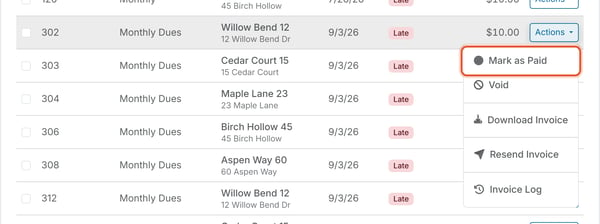
  2. Find the invoice, open its row's Actions menu, and choose Mark as Paid.
  3. Choose a Payment Type: Check, Cash, Credit Card, ACH, or Other.
  4. If Payment Type is Check, optionally enter the Check Number — useful for cross-referencing against a deposited check later.
  5. Confirm or update the Payment Date — defaults to today's date, but change it if the payment was actually received on an earlier date.
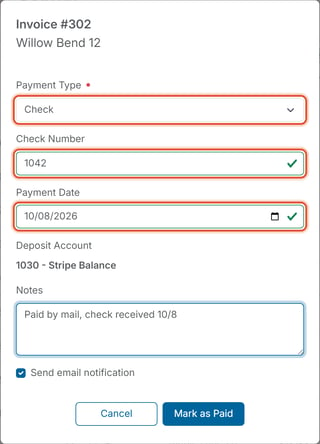
  6. Optionally add Notes — free text explaining the payment (e.g. "Paid by mail, check received 8/4").
  7. Leave Send email notification checked (the default) if the member should get an automated email that their invoice is now paid, or uncheck it if you don't want them notified yet.
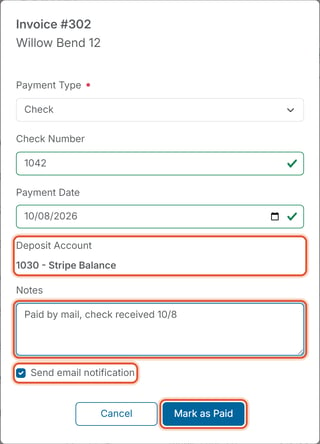
  8. Click Mark as Paid to confirm.

What happens after: The invoice's Status changes to Paid (or Paid Late, if it was already past its due date). It drops out of the Invoice Dashboard's default Open/Late/Pending view and shows up in Balances > Payment History as a manually-marked payment, with a Status of Marked.

Unmarking a Manually Marked Payment

Unmark Payment reverses a manual payment record so the invoice goes back to being owed. This option only applies to payments that were manually marked paid (checks, cash, etc.) — it is not available for payments made through the online payment processor.

  1. Go to Balances > Payment History.
  2. Find the row for the manual payment (its Status shows Marked), open its Actions menu, and choose Unmark Payment.
  3. A confirmation dialog appears: "Are you sure you want to unmark the manual payment for Invoice #___? This will void the manual payment record." It includes an optional Notes field, for recording why (e.g. "check bounced"), and a Send email notification checkbox, checked by default — tells the member the payment no longer counts. Uncheck it if the member shouldn't be notified yet, for example while a bounced check is still being confirmed.
  4. Click Unmark Payment to confirm, or Cancel to back out.

What happens after unmarking: Unmarking voids the manual payment record — the invoice reverts to unpaid, so it will show up as owed again in Balances > Invoice Dashboard. Its Status in Payment History changes from Marked to Unmarked.

What about payments made online?

For payments made through the online payment processor, the row's Actions menu in Payment History shows Refund Payment or Cancel Refund instead of Unmark Payment, since those payments need to be reversed through the payment processor rather than simply unmarked.

Choosing Refund Payment opens a confirmation asking "Are you sure you want to refund this payment?" It requires selecting a Payable Account (the GL account the refunded amount should come out of) and includes an optional Notes field. Confirming shows "Refund initiated successfully. The status will update once Stripe confirms the refund" — refunds aren't instant, since they're processed through the payment processor rather than the platform itself.

While a refund is processing (shown as Refund Pending in the Status column), the row's Actions menu offers Cancel Refund instead, in case the refund was started by mistake.

Note: Marking and unmarking a payment does not move money — it only changes what the platform's records say happened. Refunding an online payment through Refund Payment does move money back to the payer through the payment processor, so use it only when a real refund is intended.