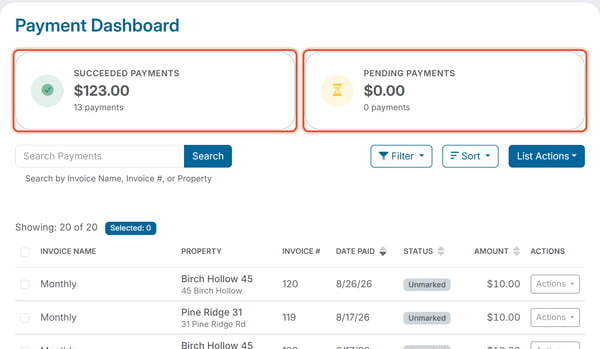
Balances > Payment Dashboard lists every payment recorded against an organization's invoices — both online payments processed through a connected payment processor and payments that you or another administrator mark as paid manually (for example, a check or cash payment entered by hand).
Two summary tiles at the top show Succeeded Payments and Pending Payments, each with a dollar total and a payment count. The Succeeded Payments tile includes payments marked as paid manually. Below is a searchable, sortable table of payments with these columns: Invoice Name, Property, Invoice #, Date Paid, Status, Amount, and an Actions column. On a wider screen the table also shows Due Date, Service Fees, and Payment Type. The table loads 20 payments at a time; scroll down to load the rest. The line above the table, such as "Showing: 20 of 31", tells you how many payments match your search and filters. Click Actions at the end of a row to download or resend a receipt, or to cancel a Pending ACH payment; see Download a Receipt or Export from the Payment Dashboard and How Do I Cancel a Pending ACH Payment?.
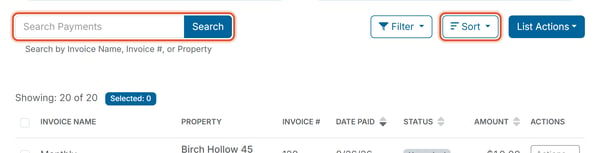
- Search — search the Search Payments box by Invoice Name, Invoice #, or Property.
- Sort — click the Sort button, choose Status, Date Paid, Due Date, Amount, or Fees, then choose Ascending or Descending. You can also click the up/down arrows beside the Date Paid, Status, and Amount column headings.