
This article shows you how to open an invoice schedule, change its details, and replace the properties it charges. Owners and Org Admins can edit a schedule from the Invoice Schedules list under Balances while its Issuance Date is still in the future.
Past Issuance Dates cannot be saved: A schedule whose Issuance Date has passed cannot be edited and saved. To change a schedule that has already issued, create a new invoice schedule with the details you want, then deactivate the old schedule so it stops creating invoices.
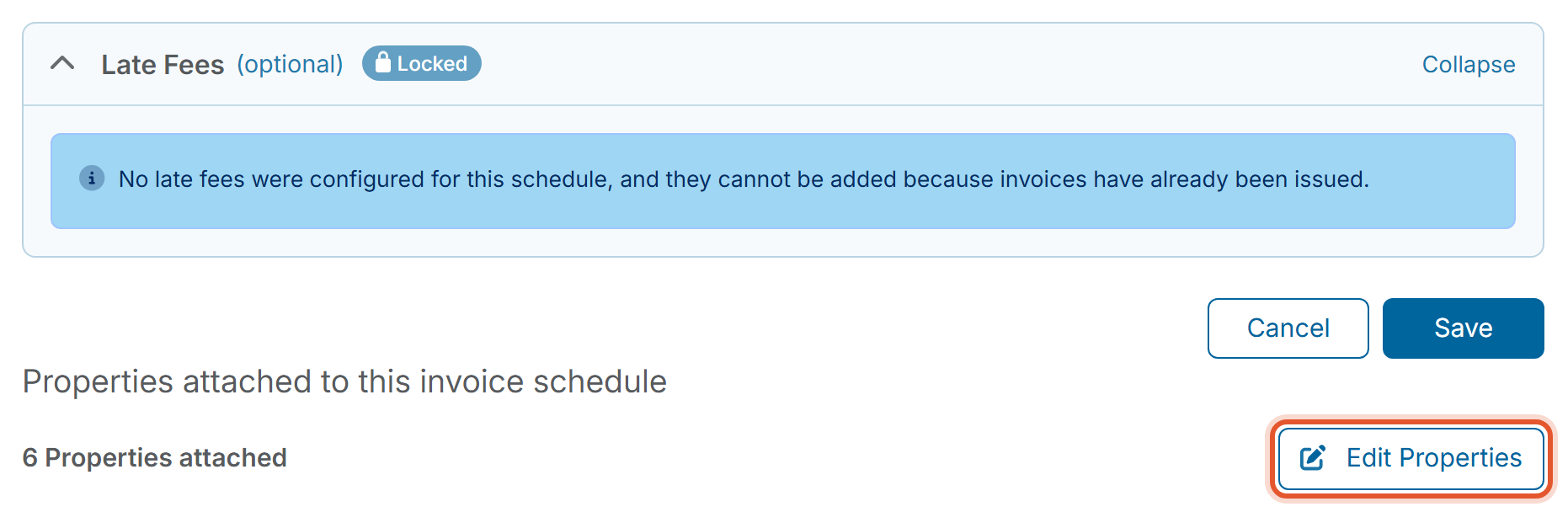
Late Fees are locked after the first invoice: Once a schedule has issued an invoice, its Late Fees section cannot be changed or added. All other fields on the form stay editable.
When would you use this?
- You typed the wrong Invoice Name, or want to update the Invoice Instructions members see on the invoice.
- The monthly dues amount for the next year has changed and the schedule needs the new Amount.
- A new owner or a new property needs to be on the schedule, or a property should be taken off it.
Steps
- Click Balances in the left nav, then click Invoice Schedules.
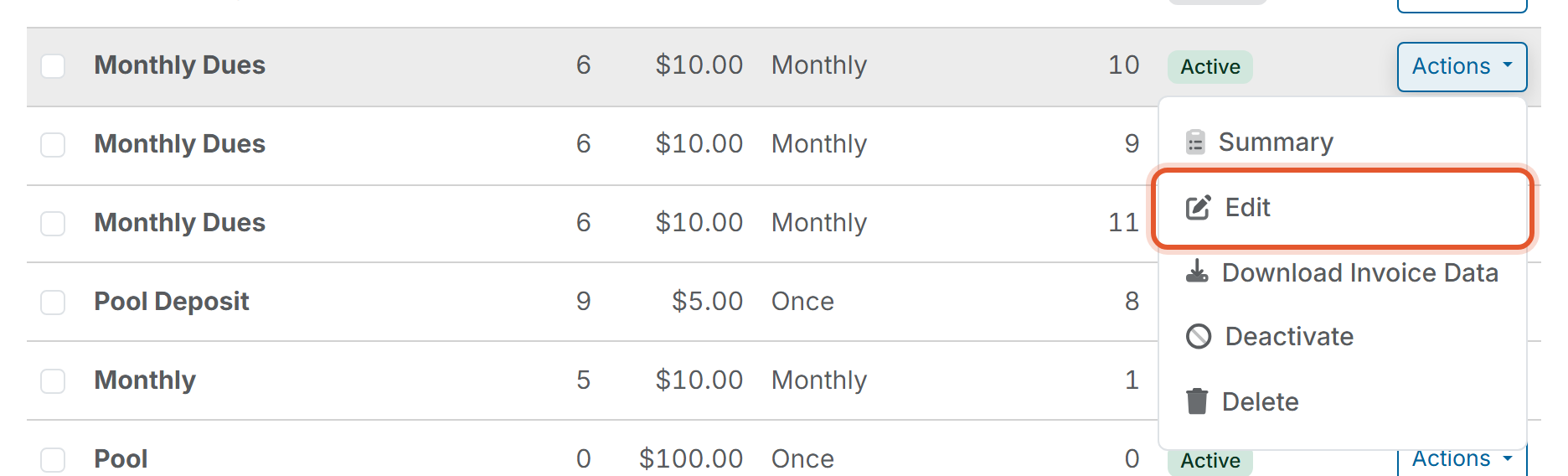
- Find the schedule in the list, click Actions at the end of its row, and click Edit. The Edit Invoice Schedule page opens.
- Change any of the fields. The page has the same fields as Create Invoice Schedule, already filled in with the schedule's current values: Invoice Name, Invoice Schedule Description, Activate Charge, Income Type, Asset Type, Amount, Frequency, Issuance Date, Due Date, End Date (shown for Monthly and Annually schedules), and Invoice Instructions. See Create a One-Time Invoice for what each field means.
- Scroll to Late Fees. On a schedule that has issued invoices, the section shows a Locked label with a message and you cannot change it. See How Do I Set Up Late Fees on an Invoice Schedule?
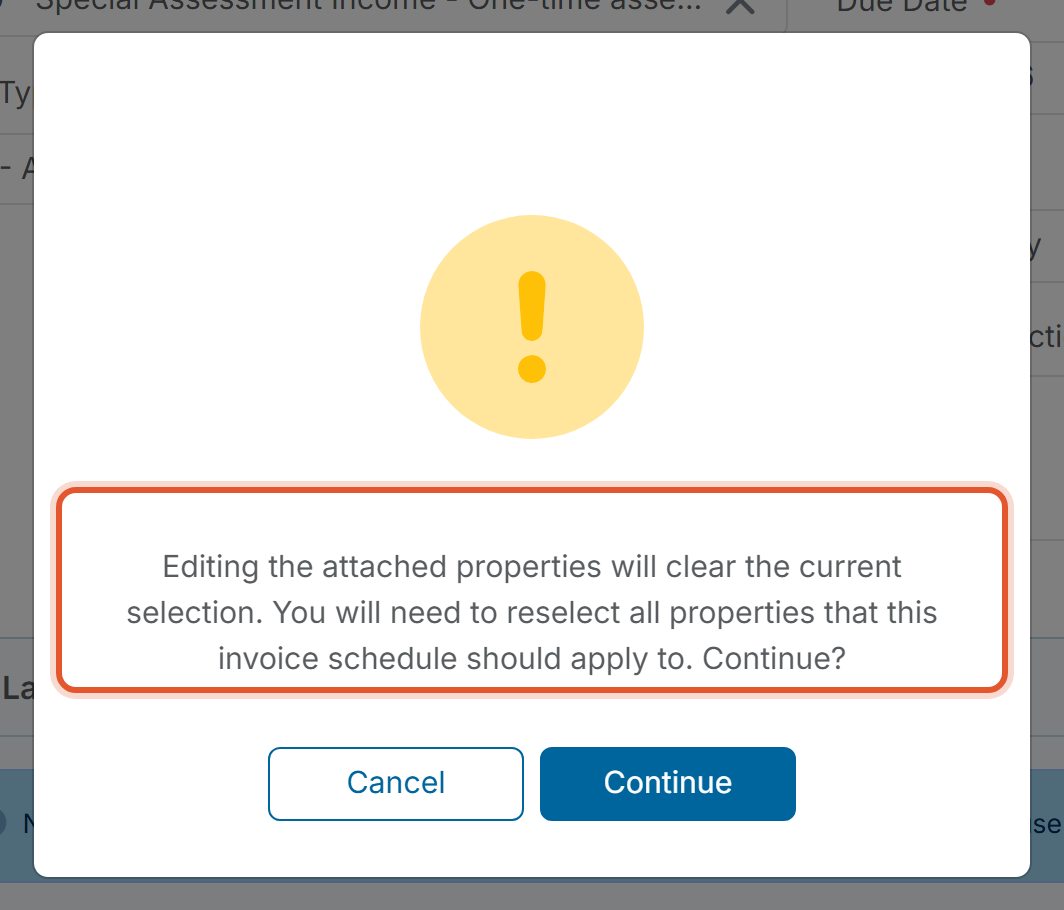
- To change which properties the schedule charges, read this first: replacing the properties clears the whole current selection, and you must select every property again, including the ones you want to keep. Then click Edit Properties, under the heading "Properties attached to this invoice schedule" (the line above the button shows the count, such as 6 Properties attached).
- A window asks: "Editing the attached properties will clear the current selection. You will need to reselect all properties that this invoice schedule should apply to. Continue?" Click Cancel to keep the current properties, or click Continue.
- After you click Continue, the list of attached properties is replaced by a Select Properties to charge table with Selected: 0. Search, filter, or sort the table, then check every property the schedule should charge.
- Click Save.
Good to Know
- The Issuance Date and Due Date must be today or later. When a schedule's Issuance Date has already passed, the red messages "Issuance date cannot be in the past" and "Due date cannot be in the past" appear under its existing dates and the schedule cannot be saved. Create a new invoice schedule instead.
- Each schedule bills every checked property its own invoice for the full Amount. See How Invoice Schedules Generate One Invoice Per Property.