
This article shows you how to turn on late fees for an invoice schedule so a fee is added automatically when an invoice is not paid on time. Owners and Org Admins set this up in the Late Fees section of the Create Invoice Schedule form, under Balances > Invoice Schedules.
Set late fees before the first invoice goes out: Once a schedule has issued an invoice, its Late Fees section is locked and cannot be changed or added. Decide on your late fee rules while you are creating the schedule.
When would you use this?
- Your monthly dues are due on the 1st, and the board wants a $25 late fee added to any invoice that is still unpaid 10 days later.
- The board wants fees to build up: a smaller fee after a short grace period, then a larger fee that repeats every week or two until the owner pays.
- A one-time special assessment should charge a late fee once if it is not paid by the deadline, and nothing more.
Steps
- Click Balances in the left nav, then click Invoice Schedules.
- Click List Actions, then click Create Invoice Schedule, and fill in the top of the form (name, accounts, amount, frequency, dates). See Create a One-Time Invoice for those fields.
- Find the Late Fees (optional) bar and click Configure. The section opens and shows an Enable late fees switch.

- Turn on Enable late fees. Two things appear: a Late Fee Revenue Account box and an Add Tier button.
- Click the Late Fee Revenue Account box, then choose the income account where late fee income should be recorded. The list shows each income account with its number, name, and a short description, for example 4100 - Late Fees. This field is required.
- Click Add Tier. A tier is one late fee rule. Tier 1 appears with these fields:
- Fees Amount (required): the dollar amount of the late fee each time it is charged.
- Grace Period (days) (required): the number of days after the invoice due date before the late fee applies. It starts at 0.
- Occurrences (required): how often the fee is charged. Choose Once (applies only once), Multiple (can recur a set number of times), or Until paid (recurs until the invoice is paid).
- Number of times (required, appears only when Occurrences is Multiple): how many times the late fee can recur. It must be 2 or more.
- Frequency (days) (required, appears when Occurrences is Multiple or Until paid): the number of days between each repeat of the fee.
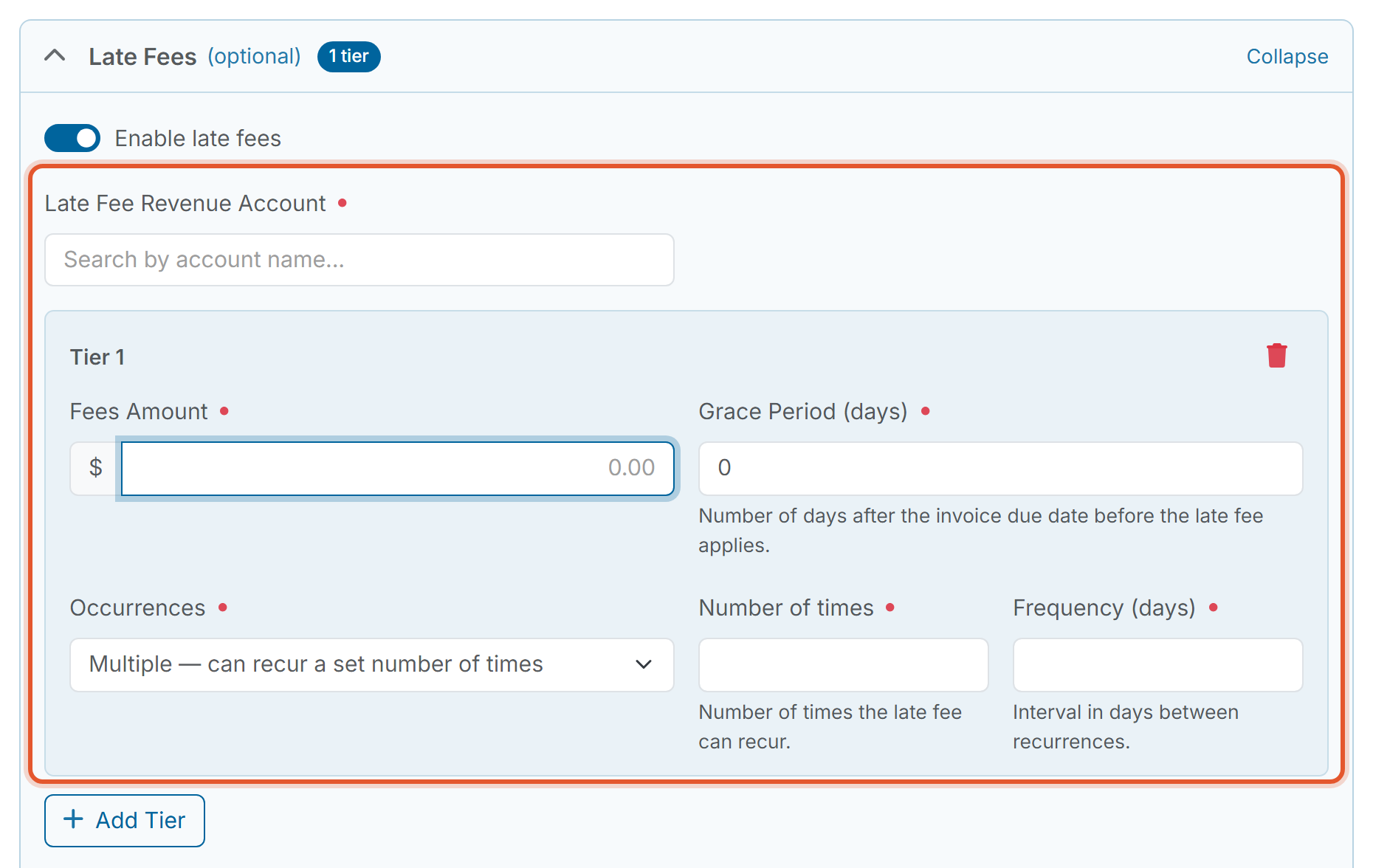
- To add a second rule, click Add Tier again. Each tier has its own Fees Amount, Grace Period, and Occurrences. Click the red trash can at the top right of a tier (Remove tier) to delete it. The bar at the top of the Late Fees section shows how many tiers you have, such as 2 tiers.
- Check the preview under the tiers. Until you set the Due Date at the top of the form, it reads "Set a due date above to see exact calendar dates." Below the timeline, each tier gets a summary line, such as "$15.00 · 10-day grace · 3× every 10 days · total $45.00." A tier set to Until paid is labeled Continues until paid.
- Finish the rest of the form, then click Save.
Good to Know
- Each tier needs a Fees Amount. A tier left blank shows "Amount is required" under the field.
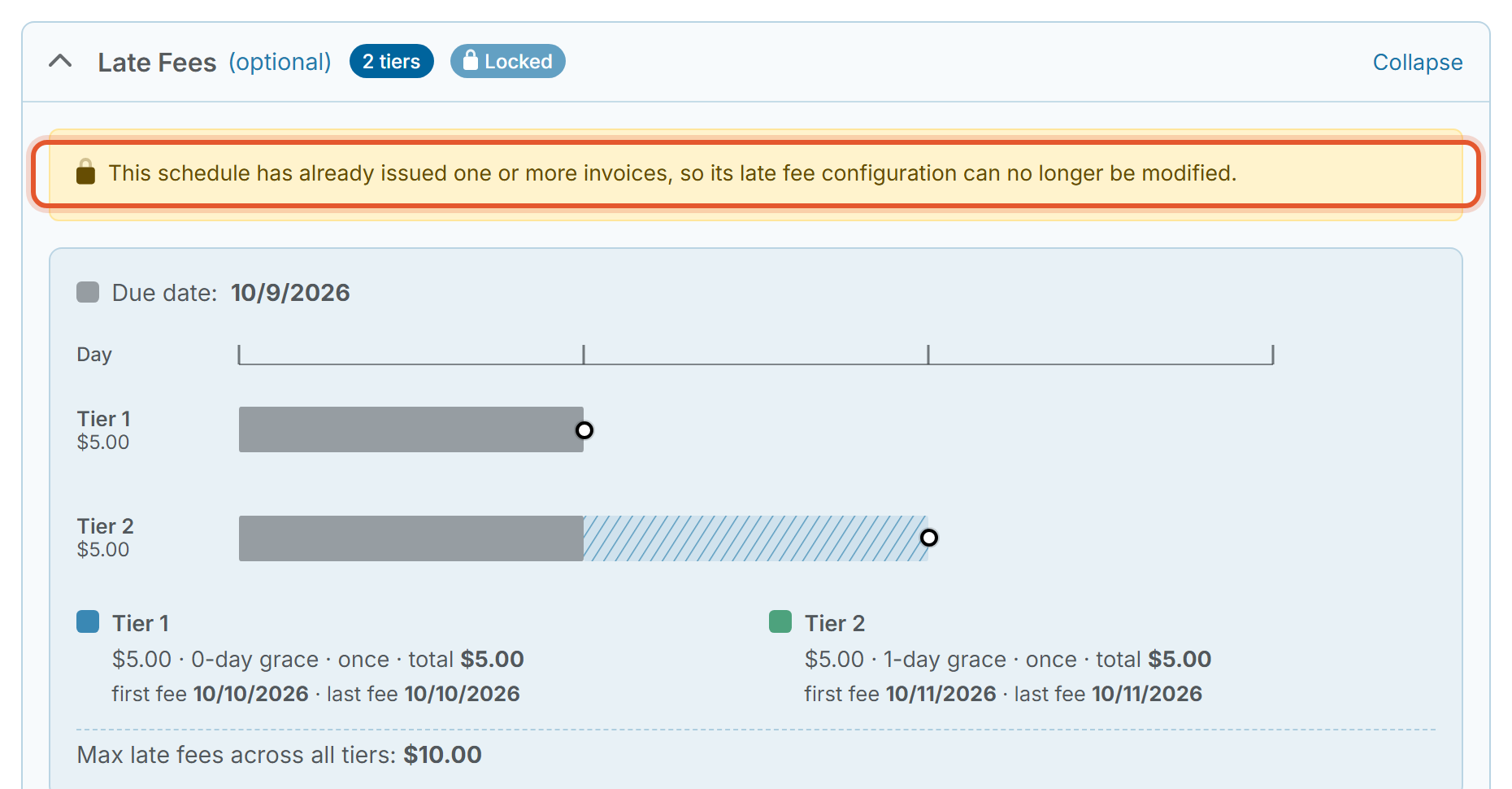
- For a schedule that has already issued an invoice, the Late Fees section shows a Locked label and the message "This schedule has already issued one or more invoices, so its late fee configuration can no longer be modified." The tiers appear as a read-only summary with the first and last fee dates and the line "Max late fees across all tiers." If no late fees were set up, the message reads "No late fees were configured for this schedule, and they cannot be added because invoices have already been issued."
- Late fees are optional. Leave the Late Fees bar collapsed to create a schedule without them.
Note: To forgive late fees that have already been charged on an invoice, see the related article below.