
This article shows you how to edit a budget you have already created: change the amounts or add and remove account rows. Owners and Org Admins can do this from Financials > Budgets.
Before you start: The Year on a budget cannot be changed. Each year can have only one budget.
Steps
- Click Financials in the left nav, then click Budgets.
- Click Actions on the budget's row.
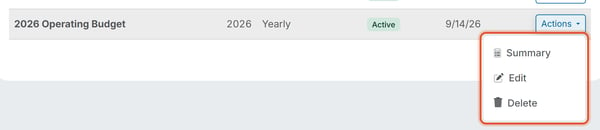
- Choose Edit.
- Type a new Annual Budget Amount for any line. You can also change the Account, add a new line with Add Row, or remove a line with the trash icon.
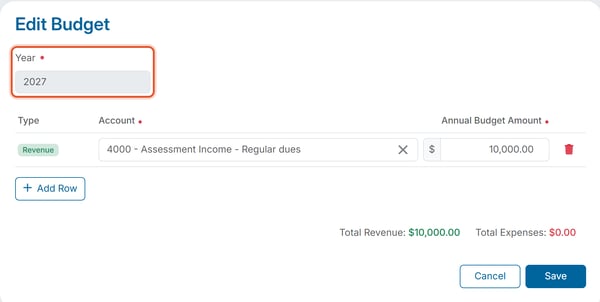
- Click Save to save your changes.
Editing a budget mid-year
Unlike Expenses, a budget can be edited after you create it: use the row Actions menu, then Edit. You can change the amounts and the account rows, but not the Year. If a planned amount changes partway through the year — for example, the board approves a higher reserve contribution — use Edit on the existing budget rather than creating a new budget for the same year. A second budget for the same year can't be created — the Create Budget form shows "A budget already exists for this year."