
This article shows you how to activate or deactivate several members in one step from the Members list. Owners and Org Admins can do this from Members > List Actions.
When would you use this?
- You want to turn on login access for a group of members together.
- You want to turn off login access for a group of former residents together while keeping their records and history.
Steps
- Click Members in the left nav.
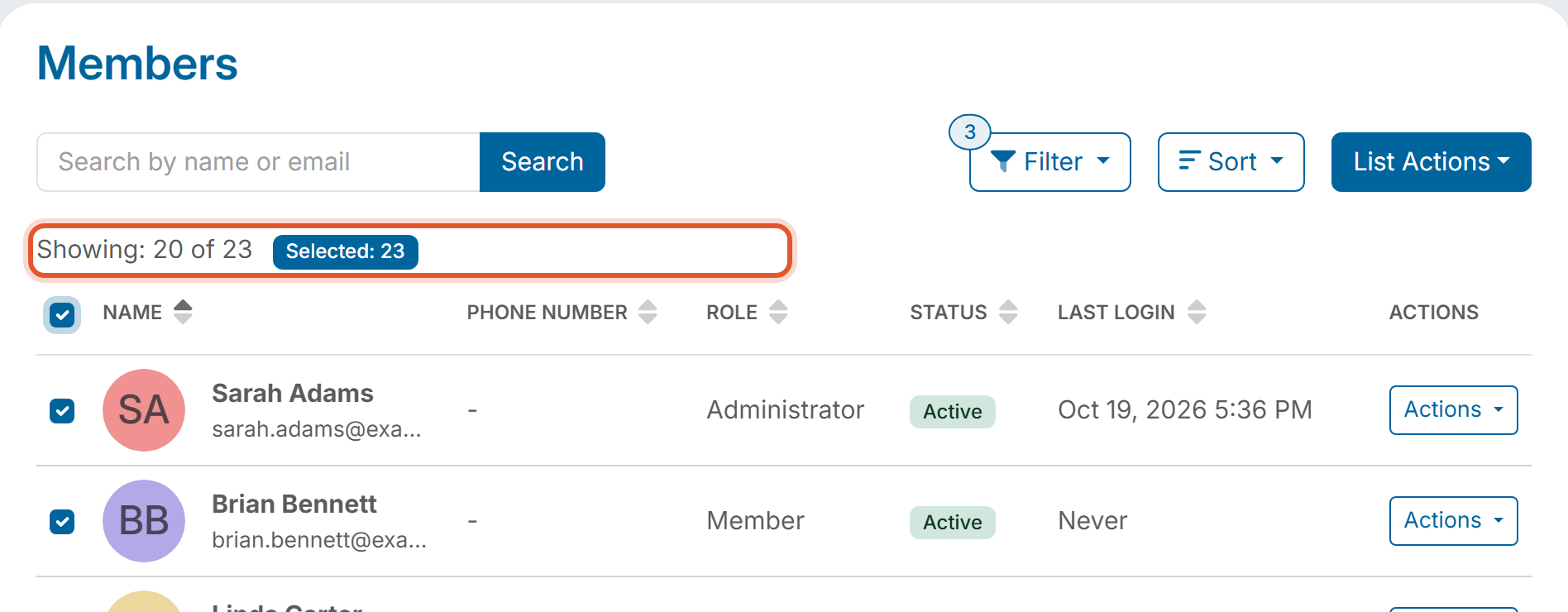
- Check the box at the left of each member you want to include. To include every member that matches your current search and filter, check the box in the table header (its label is Select All). The Selected counter next to "Showing" shows how many members are chosen.
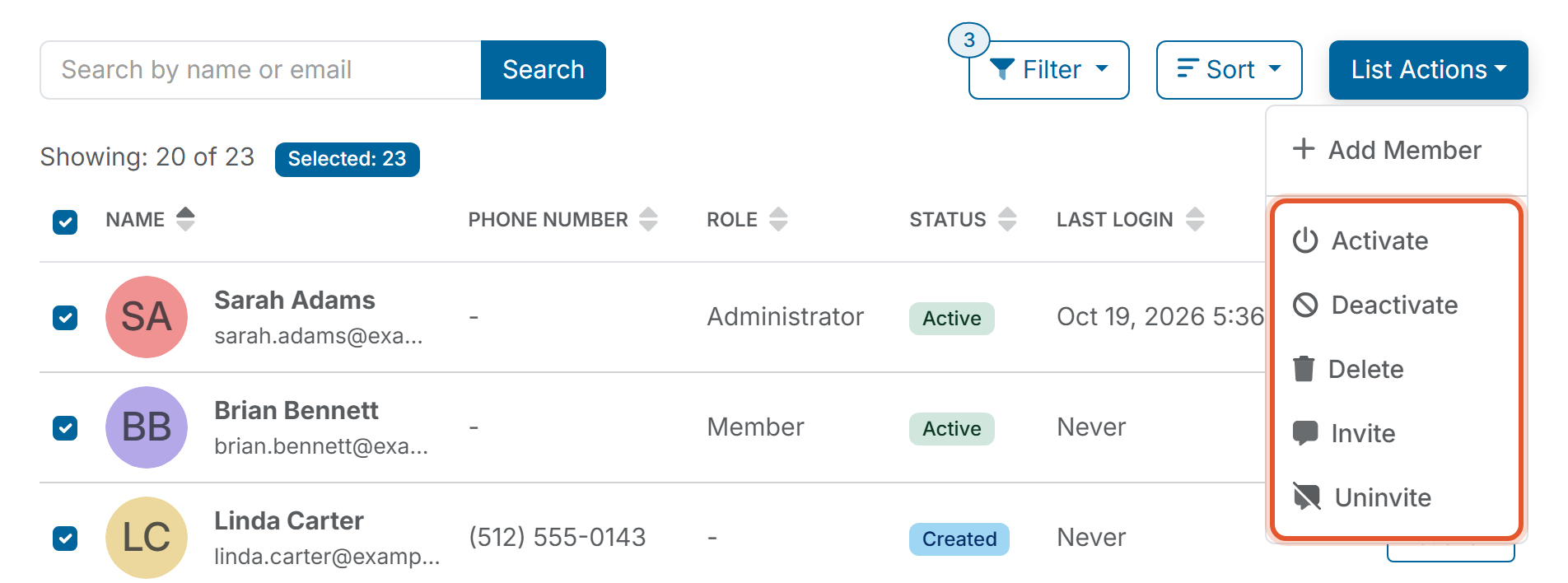
- Click List Actions and choose Activate or Deactivate. Add Member is always available; the other choices are grayed out until at least one member is checked.
- Read the confirmation message (the list below shows what each one says). You can type an optional reason in the Notes box.
- Click Yes to continue, or No to cancel without changing anything.
- Read the result message and click OK. It states how many members were changed and how many were skipped.
What each action says
- Activate
Confirmation: "Are you sure you want to activate 3 Member account(s)?"
Result: "You have activated [number] Member account(s). [number] account(s) skipped." - Deactivate
Confirmation: "Are you sure you want to deactivate 3 Member account(s)? Your own account will not be deactivated."
Result: "You have deactivated [number] Member account(s). [number] account(s) skipped. Your own account will not be deactivated."
The numbers in each message match the members you selected and what the action did.
Good to Know
- The header checkbox selects every member that matches your current search and filter, not only the 20 rows loaded on the screen. With 23 matching members and 20 rows showing, the counter reads Selected: 23. Search or filter first when you want a smaller group.
- Activate turns on login access for every member you selected. Deactivate turns off login access; a deactivated member can no longer log in, but their record and history stay in your organization.
- Activate and Deactivate skip selected members the action does not apply to, for example members who are still Invited. They are counted in the "skipped" number.
- The Deactivate confirmation states that your own account is not deactivated.
- After an action finishes, the Selected counter returns to 0.