
The Overview tab gives you a read-only summary of your organization's key details in one place. Owners and Org Admins both see the same Overview tab in Organization Settings.
When would you use this?
- Checking at a glance which reply-to email address receives member replies to your emails.
- Confirming how many members the organization currently has.
- Confirming the time zone and currency before you send invoices or schedule messages.
Steps
- Click Organization Settings in the left nav.
- Click the Overview tab, the first tab at the top of the page.

- Read the Organization Details card, which lists the organization name, Reply-To Email, Status, Billing Status, Member Count, Time Zone and Currency.
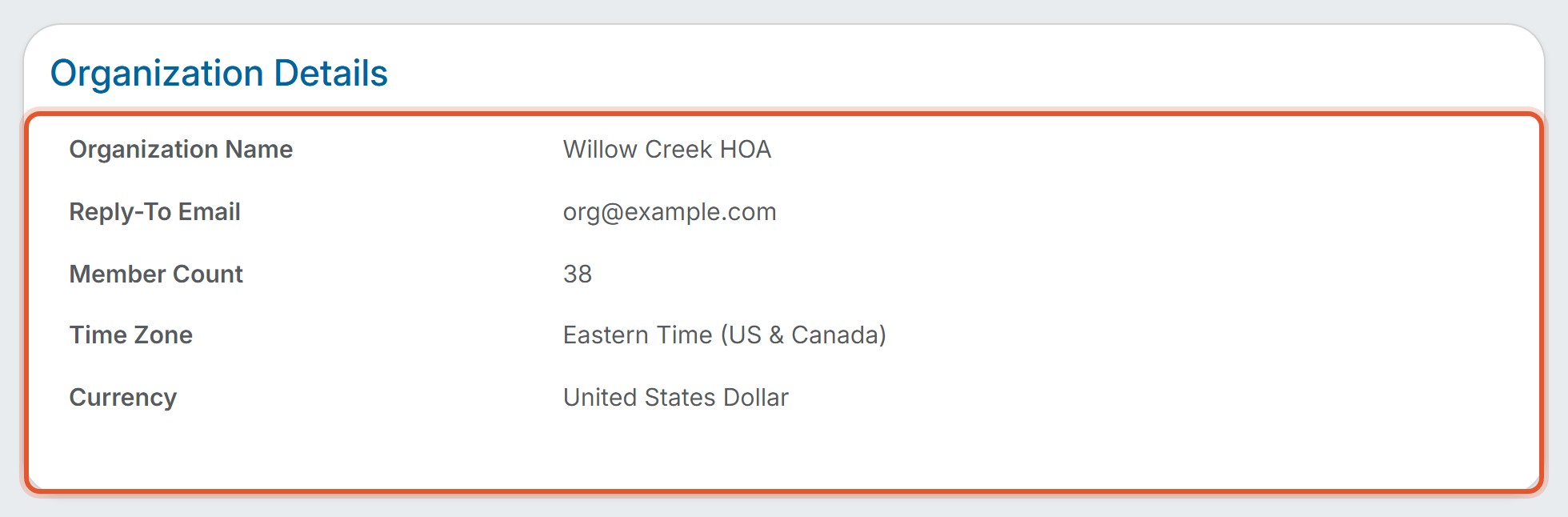
What the Organization Details card shows
- Organization Name: the name of your organization.
- Reply-To Email: the email address that receives replies when members respond to emails sent from the organization.
- Status: the organization's current status, such as Active.
- Billing Status: the organization's current billing status.
- Member Count: the number of members in your organization. It matches the member count shown beside the organization name at the top of the page.
- Time Zone: the time zone the organization uses, such as Eastern Time (US & Canada).
- Currency: the currency the organization uses, such as United States Dollar.
Good to Know
- The Overview tab is for reading only. It has no fields or buttons to edit. To change a value, use the Settings tab.
- The other tabs next to Overview are Settings, Contacts, Addresses and Activity Logs.