
Owners and Org Admins can update the organization's name, reply-to email address, time zone, currency and member directory default on the General section of Organization Settings.
How to Get There
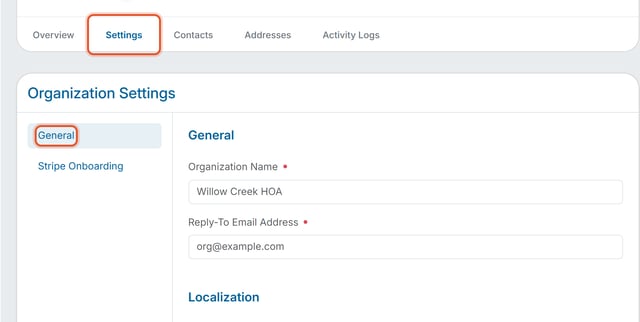
- Click Organization Settings in the left nav.
- Click the Settings tab, then choose General from the left-hand sub-navigation.
What You Can Update
- Organization Name — the name of your organization as it appears throughout the product.
- Reply-To Email Address — the address a member's reply goes to when they hit "Reply" on any email from this organization (invitations, invoices, payment notices, email blasts, and every other email type). It doesn't change what a member sees as the sender — that stays the organization's name — it only controls where a reply lands. This field is required: saving it empty shows "Reply-To Email Address is required." and an invalid format shows "Please enter a valid email address." The placeholder text shows noreply@example.com.
- Time Zone and Currency — chosen from two dropdowns in the Localization section. See "How Do I Set Organization Timezone and Currency"
Note: General, Localization, and Member Directory are sections stacked on this same page, not separate pages. There is one Save button at the bottom that saves them all together.
Member Directory
Below Localization, the Member Directory section has one toggle, "List new members in the member directory by default." The toggle is on by default. It applies only to members who join after you change it. Existing members keep their current setting, and every member can change their own visibility at any time. See "How Do I Choose Whether New Members Appear in the Member Directory?"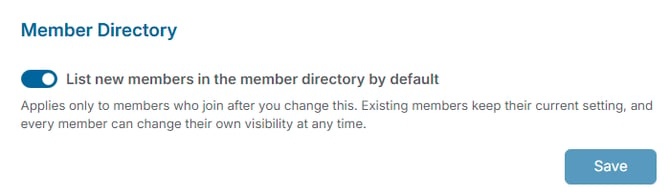
Note: Before turning this on, check your local and state laws. You may need each member's explicit permission before listing their information in a directory.