
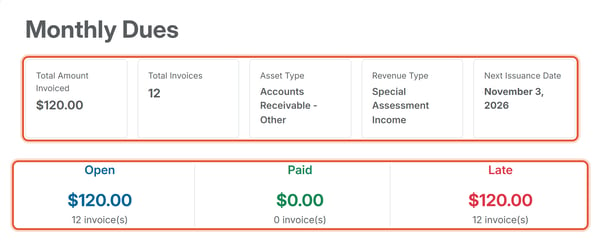
This article covers a deeper view of one existing schedule: its Summary page, which totals up everything that schedule has billed and shows its Asset Type and Revenue Type.
When Would You Use This?
- See the lifetime total a recurring schedule has billed across all properties.
- Confirm which GL accounts a schedule is tied to before changing the Chart of Accounts.
- See how many invoices from a schedule are open or late.
How to Get There
- Go to
Balances > Invoice Schedules. - Find the schedule and click
Actionson its row. - Click
Summary.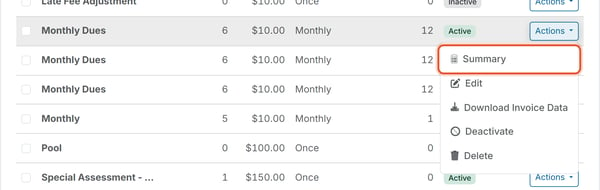
What the Summary Shows
- Total Amount Invoiced — lifetime total billed.
- Total Invoices — count generated.
- Asset Type — the receivable account chosen as the Asset Type when the schedule was created.
- Revenue Type — the income account chosen as the Income Type when the schedule was created.
- Next Issuance Date — shows "None" if no future issuance scheduled.
- Open / Paid / Late — a dollar total and invoice count for each. Open counts every unpaid invoice, including late ones, so a late invoice appears in both Open and Late. Open plus Paid equals Total Invoices.
The Invoices Tab
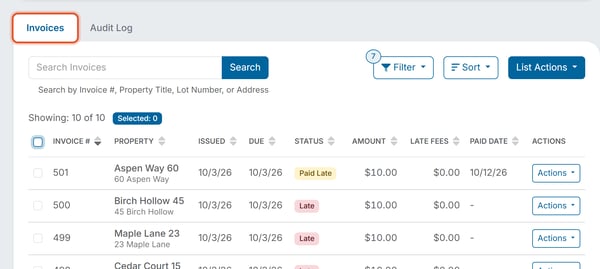
Lists every invoice this schedule has generated with the columns Invoice #, Property, Issued, Due, Status, Amount, Late Fees, Paid Date, and Actions. On a narrower window some columns are hidden. Use Search, Filter, and Sort to narrow the list.
The Audit Log Tab
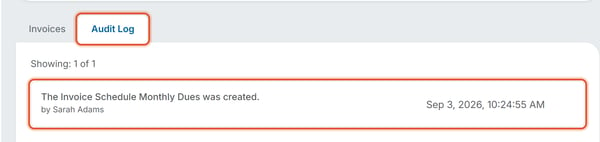
Lists every change made to the schedule itself, newest first, with who made it and when. An edit also shows a Details line that spells out what changed, for example Changed Amount from "$12.00" to "$10.00".
Good to Know
- The Summary page cannot be edited. To change the schedule, go to Balances > Invoice Schedules, click Actions on its row, and click Edit. See How Do I View and Manage Invoice Schedules? To learn why the invoice count matches the number of properties, see How Invoice Schedules Generate One Invoice Per Property.
- A deactivated schedule shows its own dated Audit Log entry.
Note: Asset Type and Revenue Type are the Asset Type and Income Type chosen when the schedule is created.