
This article covers a budget's Summary page, which compares what was actually earned/spent against what was budgeted, account by account.
When Would You Use This?
- The board wants to know whether the HOA is on track against the annual budget.
- An individual expense account is running over budget, and you need to see exactly how far over.
How to Get There
- Go to
Financials > Budgets. - Find the budget and click
Actionson its row. - Click
Summary.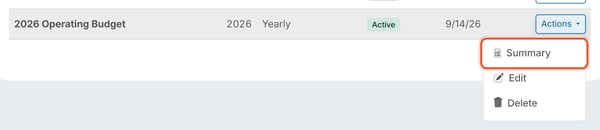
What the Summary Shows
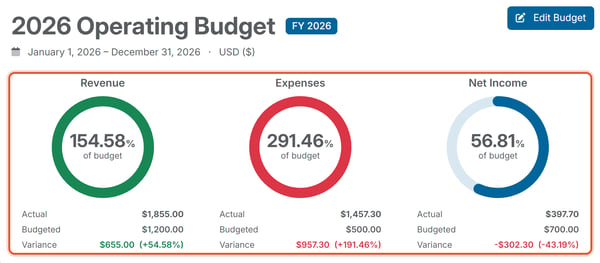
At the top of the page you see the budget's name, its fiscal year (for example, FY 2026), and its dates. Under that are three cards: Revenue (Actual vs Budgeted, Variance $ and %), Expenses (same), and Net Income (same). Variance is Actual minus Budgeted. A percentage-of-budget indicator sits above each. If a category has no budgeted amount, it shows "no budget".
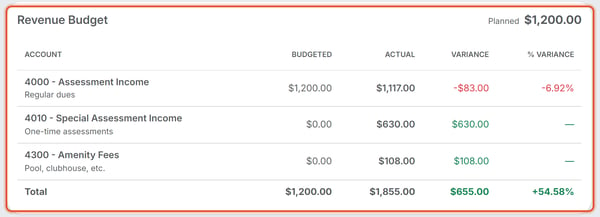
The Per-Account Table: below the headline totals, a Revenue Budget table (and Expense Budget table if applicable) breaks it down by GL account: Account, Budgeted, Actual, Variance/% Variance. A Total row sums each section. An account that has income or spending but no budget line also appears, with $0.00 under Budgeted and a dash under % Variance.
The Audit Log Tab
- Click the
Audit Logtab.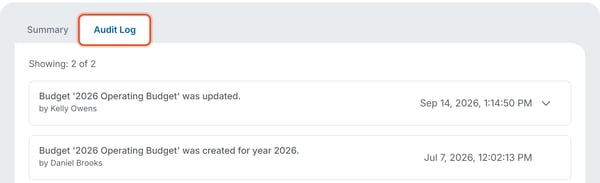
- Records changes to the budget record itself over time, each entry showing who made the change and when. The newest entry is listed first. Click the arrow on an entry marked "was updated" to see what changed.
Good to Know
- The Summary is read-only; use the Edit Budget button at the top right of the page to change planned amounts (see View and Edit Budgets).
- "No activity for this section" just means no accounts budgeted yet in that category.
Note: Actual figures on this page come from the organization's ledger (GL entries, invoices, and expenses posted to the relevant accounts).