
This article shows you how to remove a saved address or contact from your organization record. Owners and Org Admins both see the Remove button on the Addresses and Contacts tabs.
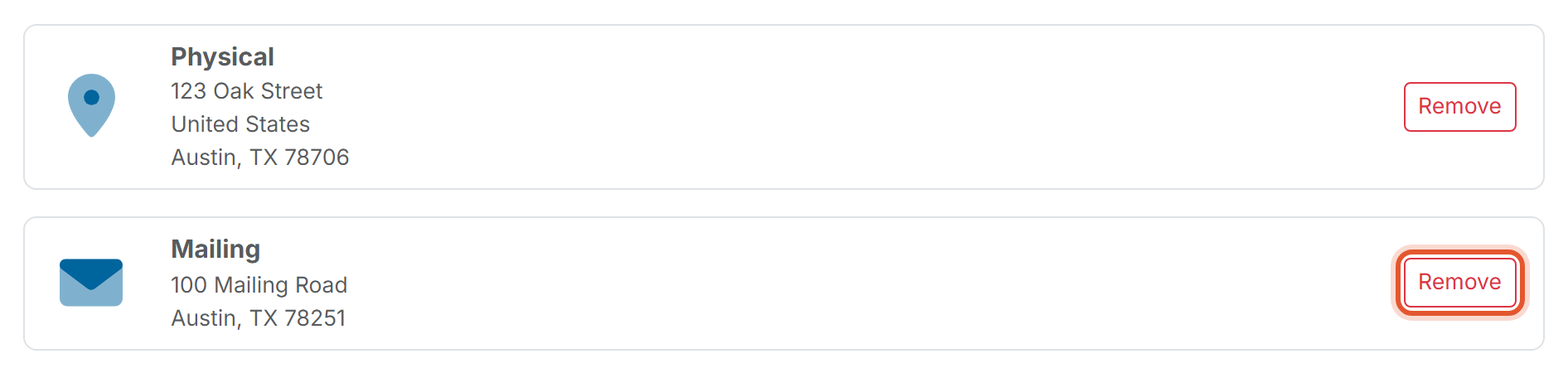
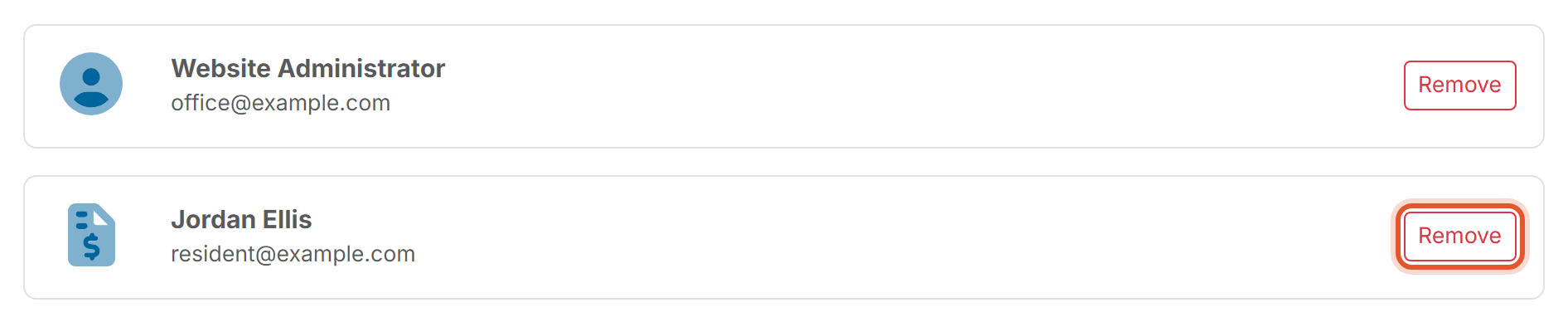
Check the row first: Each row has its own Remove button, and it removes only that row's address or contact. The Physical address and the General contact have a Remove button too, so confirm the row before you click.
When would you use this?
- The management company that received your billing mail changed, and you want to remove the old Billing address before adding the new one.
- The board no longer rents a P.O. box, so you remove the Mailing address.
- The treasurer left the board, so you remove the Billing contact.
Steps to remove an address
- Click Organization Settings in the left nav.
- Click the Addresses tab.
- Find the row for the address you want to remove, such as Mailing, and click Remove at the right end of that row.
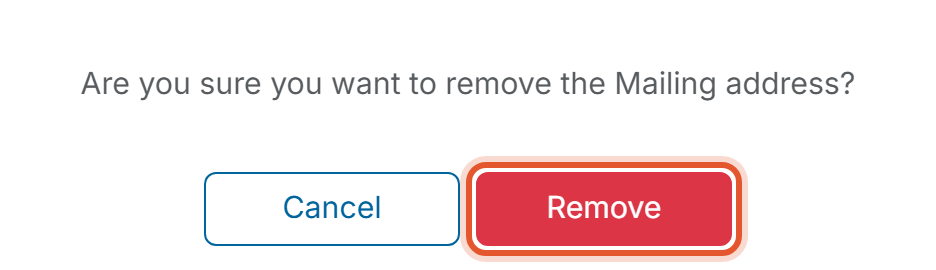
- A window asks "Are you sure you want to remove the Mailing address?" (the address type you chose appears in the message). Click Remove to confirm, or Cancel to keep the address.
- The message "Address removed successfully." appears. Click OK. The address no longer appears on the Addresses tab.
Steps to remove a contact
- Click Organization Settings in the left nav.
- Click the Contacts tab.
- Find the row for the contact you want to remove and click Remove at the right end of that row.
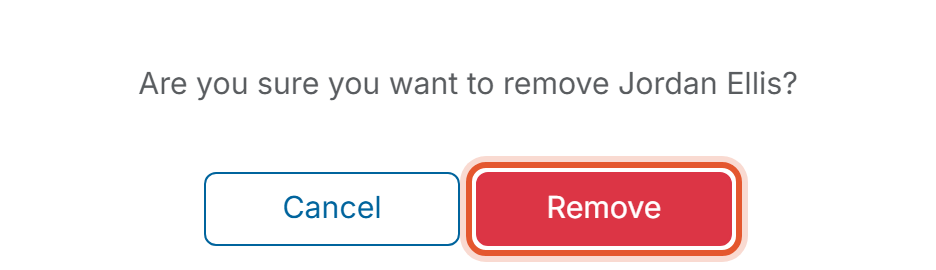
- A window asks "Are you sure you want to remove" followed by the contact's name. Click Remove to confirm, or Cancel to keep the contact.
- The message "Contact removed successfully." appears. Click OK. The contact no longer appears on the Contacts tab.
Good to Know
- Each removal is recorded in the Activity Logs tab, in an entry that reads "The Organization ... addresses were updated" or "... contacts were updated". Open the entry to see details such as "Mailing Address was removed" or "Billing Contact was removed".
- To add a removed address or contact again, use Add / Edit on the same tab.