
This article shows you how to log in to Empower with your email address and password, and how to reset your password if you have forgotten it. It applies to every Empower user, including Owners and Org Admins.
How to log in
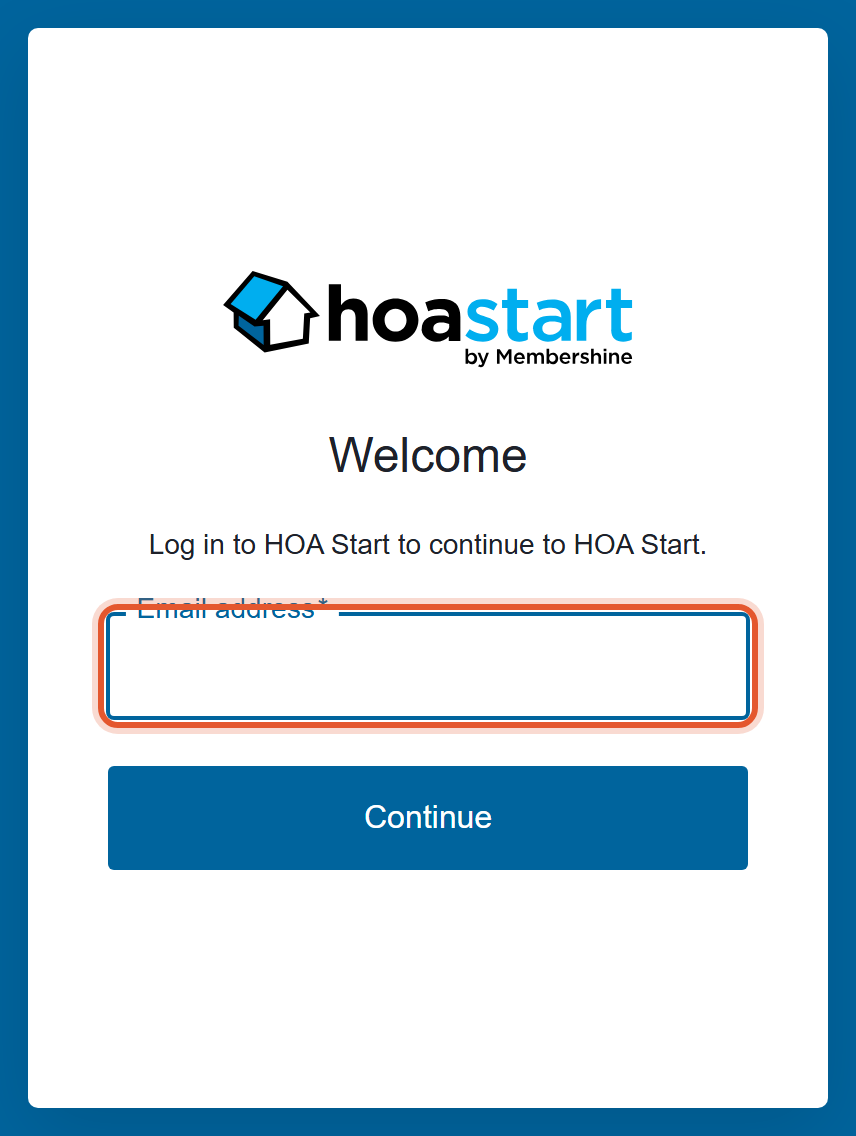
- Go to hoastart.app. The sign-in page opens with the message "Log in to HOA Start to continue to HOA Start." Type your email address in the Email address field and click Continue.
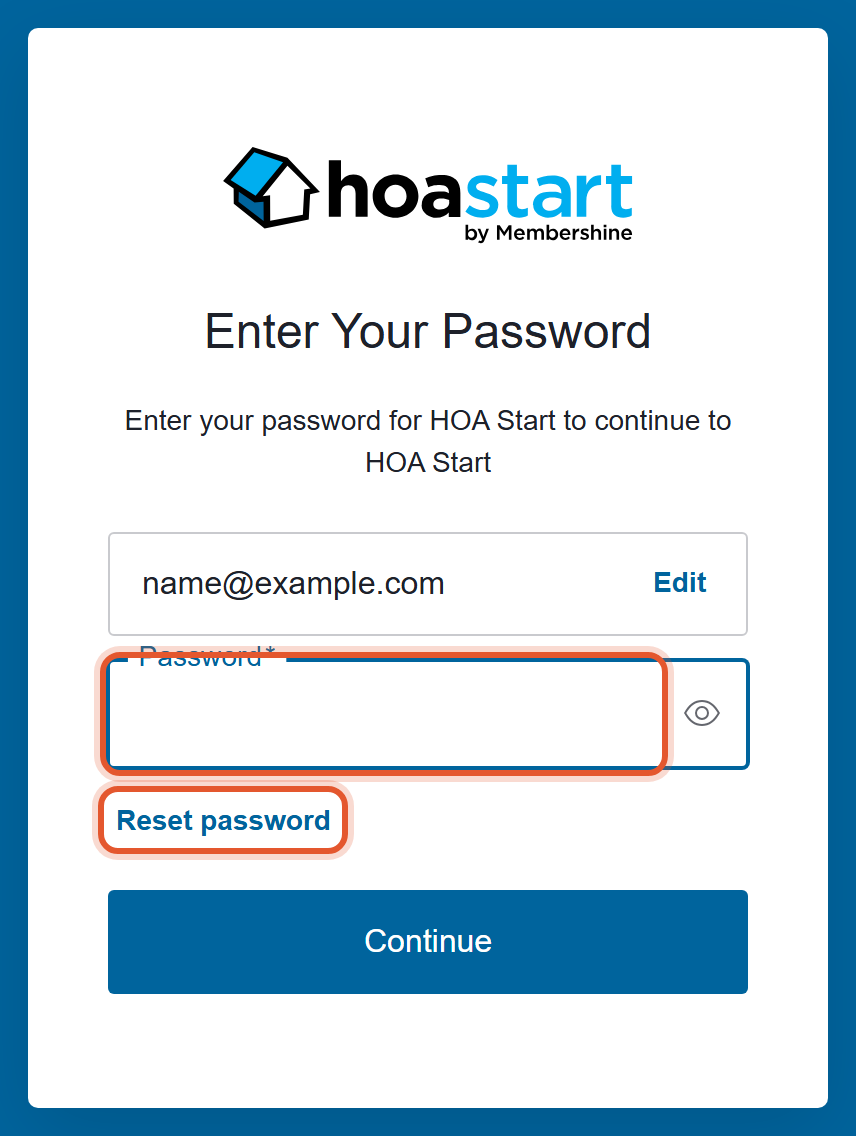
- On the next screen, type your password in the Password field and click Continue. Your Empower Dashboard opens.
If your password is not accepted
- A wrong password shows the message "Wrong email or password" under the Password field. Retype your password and click Continue again.
- If you typed the wrong email address, click Edit next to your email address at the top of the password screen. It takes you back to the email screen.
- If you do not remember your password, reset it with the steps below.
How to reset your password
- On the password screen, click Reset password, under the Password field.
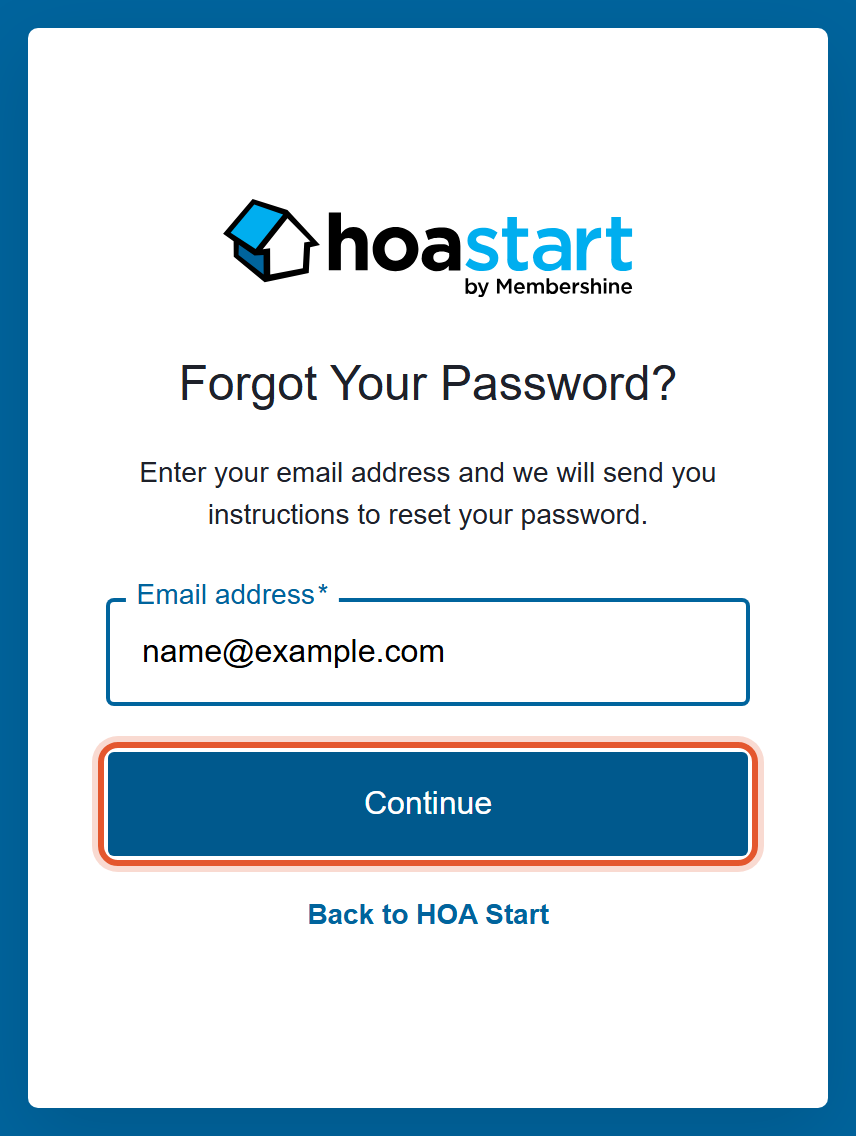
- The Forgot Your Password? screen opens with your email address already filled in. Check that it is correct and click Continue.
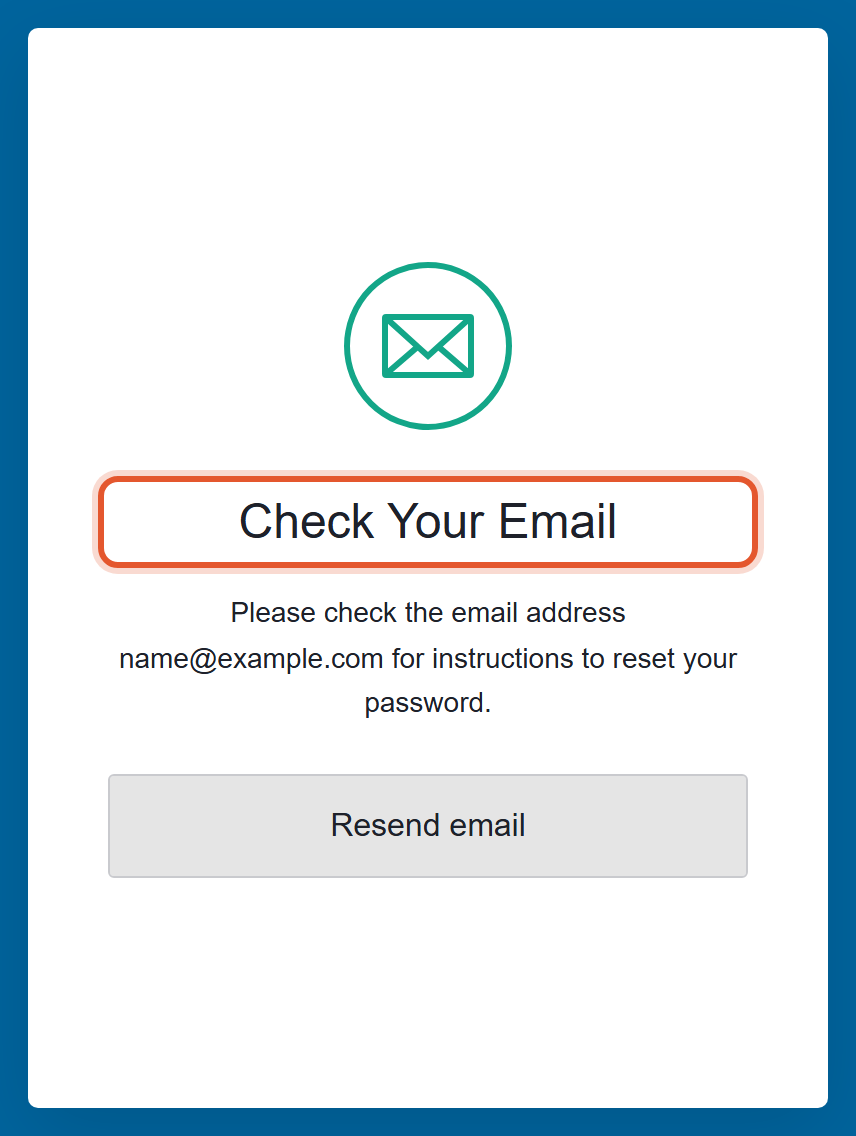
- A Check Your Email message tells you instructions were sent to that address. If the email does not arrive, click Resend email.
- Open the email with the subject "Reset your HOA Start account password." It comes from noreply@hoastart.com. Click the Confirm button in the email, or the link below it.
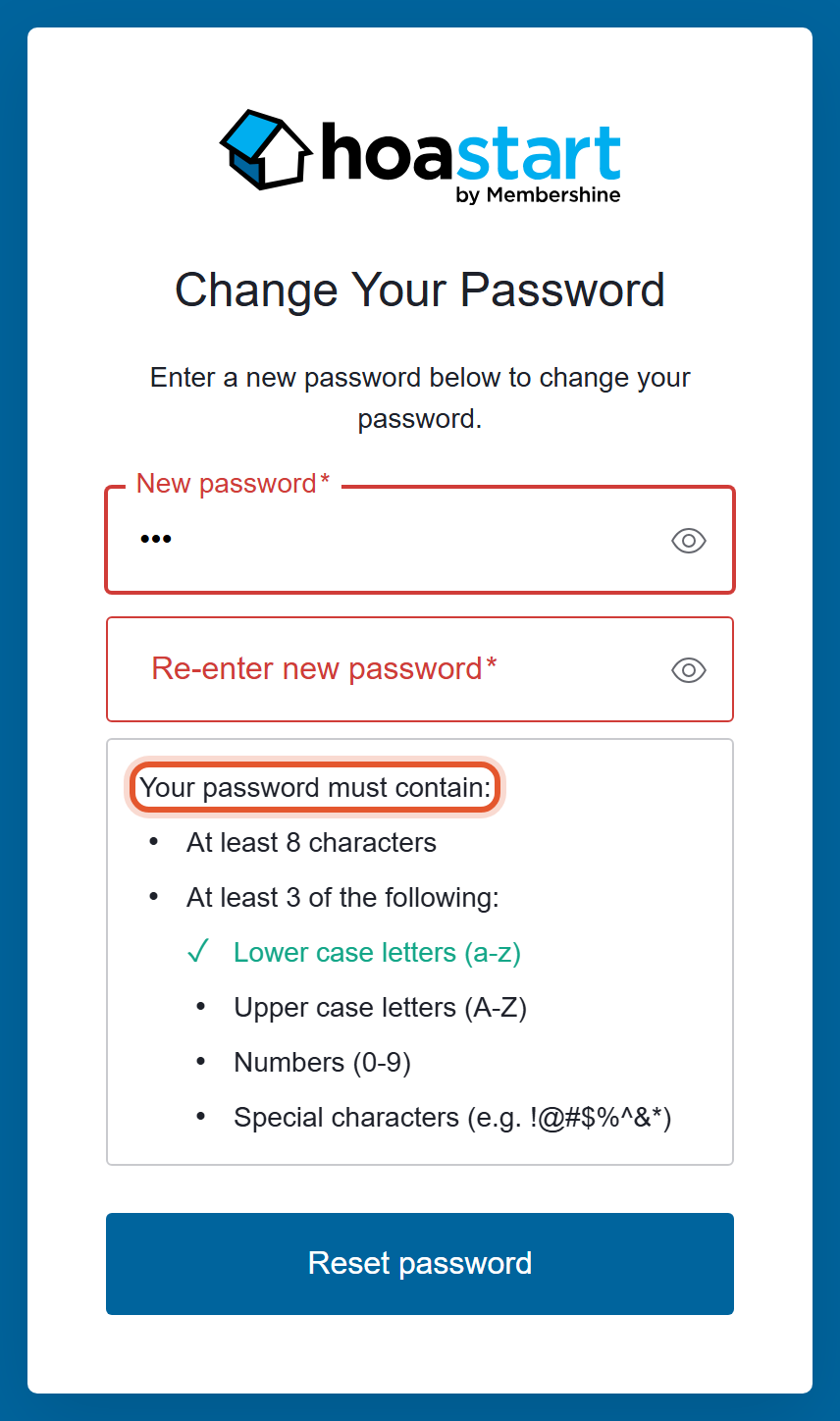
- The Change Your Password screen opens. Type your new password in New password, type it again in Re-enter new password, and click Reset password. As you type, a checklist under the fields shows what your password must contain: at least 8 characters, and at least 3 of these 4 types: lower case letters, upper case letters, numbers, and special characters.
Note: The password email comes from an address that is not monitored. Do not reply to it. If you have questions about why you received it, contact your organization administrator.
Reset your password from your profile
If you are already logged in, the Security tab on your profile also has a Reset Password option.
- Click your name in the top-right corner, then click My Profile.
- Click the Security tab. The Security Settings page says "Manage your password."
- Click Reset Password. A window asks "Are you sure you want to reset your password?" Click Yes to continue, or Cancel to keep your current password.
Good to know
- To log out, click your name in the top-right corner and click Sign Out. See What Do the Top-Bar Icons Do?
- The same password rules apply when a member sets a password from an invitation. See What Are the Member Password Requirements?