
This article shows you how to attach a file to an email in Message Center > Send Email, either by picking a file already stored in the organization's Document Center or by uploading a new file from your computer. Owners and Org Admins can do this.
Attach a file from the Document Center
- Go to Message Center > Send Email.
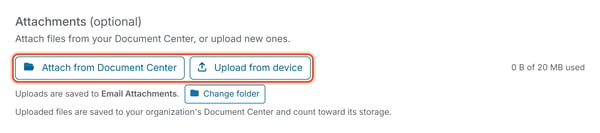
- Under Attachments (optional), click Attach from Document Center to open the Attach a file from Document Center window.
- Click a folder to see its files.
- Click a file to select it.
- Click Attach to add this file to your email.
Note: The file stays in Document Center. This only adds a copy to the email.
Upload a file from your device
- Go to Message Center > Send Email and scroll to the Attachments section below your message.
- Click Upload from device to open your computer's file picker and choose a file to attach.
Good to Know
- A running total (e.g. "0 B of 20 MB used") shows how much of the attachment size limit you've used.
- Files you upload through Upload from device are saved into the organization's Document Center, in the folder shown next to "Uploads are saved to" (an Email Attachments folder by default; use Change folder to pick a different one), and count toward that organization's document storage.
- Attaching a PDF of a newsletter or a signed board resolution lets recipients receive the document along with the message.