
There are two different things people usually mean by "adding a member": creating a brand-new member record from scratch, or connecting an already-existing member to a specific property. This article covers the first one. To connect an existing member to a property as an Owner or Tenant, see "How Do I Attach an Existing Member to a Property."
Steps
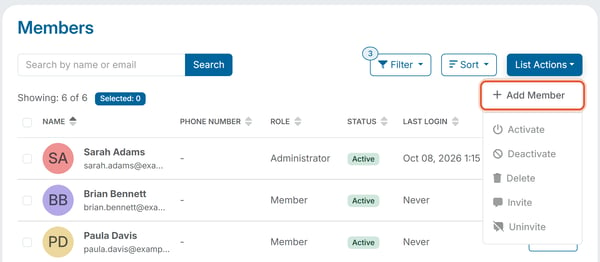
- Click Members in the left nav.
- Click List Actions > Add Member.
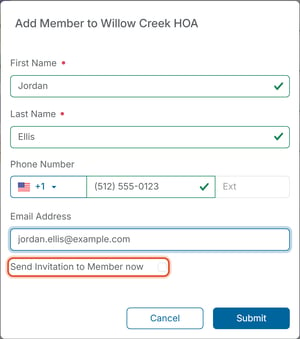
- Fill in First Name and Last Name, which are the only required fields. Phone Number (which also has an optional Ext field) and Email Address are optional, but a member needs an email address before they can be invited.
- After you type an Email Address, a Send Invitation to Member now checkbox appears below it. Leave it unchecked to just create the record, or check it to send the login invitation immediately as part of this same step.
- Click Submit.
What happens next
A member added this way is created with a Status of Created, not Active — unless Send Invitation to Member now was checked, in which case they're invited right away and show a Status of Invited instead. By default, adding a member only creates their record — it does not automatically grant them portal access or send them anything unless that checkbox was used. See "How Do I Invite a Member So They Can Log In" for the separate step that sends the invitation afterward.
This new member is also not yet attached to any property. See "How Do I Attach an Existing Member to a Property" to connect them to the unit they own or rent.