---
title: View Email History
description: view email history
---
[Skip to content](https://help.hoastart.app/view-email-history#main-content)

Open main navigation
Close main navigation
How can we help you?
- There are no suggestions because the search field is empty.
1. [HOA Start - Empower](https://help.hoastart.app/?hsLang=en)
2. [Email & Communication](https://help.hoastart.app/email-communication?hsLang=en)
# View Email History
**Message Center \> Email History** lists the emails sent for your organization, including emails you or another admin send from Send Email and automated emails the platform sends on its own (like invoice notices).
This is the place to check when a member says "I never got that email" — it shows whether the platform actually sent it, and what happened to it afterward (delivered to their inbox, opened, bounced, etc).
##### **Layout**
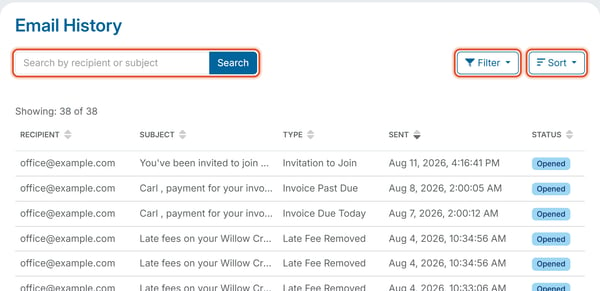
The list shows columns for Recipient, Subject, Type, Sent (the date/time the email went out), and Status.
The **Type** column is what distinguishes a manually sent email from an automated one. When the platform generates and sends an email on its own, it fills in a specific type describing why, such as "Invitation to Join," "New Invoice," "Invoice Past Due," "Payment Received," or "Late Fee Added." An email that you or another admin typed and sent through Send Email shows as **Email Blast**.
##### **Steps**
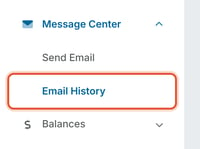
1. Go to **Message Center \> Email History**.
2. Type in the **Search by recipient or subject** box and click **Search**, or use the **Filter** menu or the **Sort** menu, to find a specific email.
If nothing matches your search or filters, the page shows "No sent emails found" with the subtext "No emails match your search and filters. Try adjusting them."
To sort the list, click Sort, then click Ascending or Descending under Recipient, Subject, Type, Sent or Status. The list reorders right away.
To see what each Status means, see [Understand Email Status Values](https://help.hoastart.app/understand-email-status-values?hsLang=en). To see what each automated Type means, see [What Are the Automated Email Types?](https://help.hoastart.app/what-are-the-automated-email-types?hsLang=en)
- [Dashboard & Reporting](https://help.hoastart.app/dashboard-reporting?hsLang=en)
- [Members](https://help.hoastart.app/members?hsLang=en)
- [Properties](https://help.hoastart.app/properties?hsLang=en)
- [Documents](https://help.hoastart.app/documents?hsLang=en)
- [Email & Communication](https://help.hoastart.app/email-communication?hsLang=en)
- [Budgets & Expenses](https://help.hoastart.app/budgets-expenses?hsLang=en)
- [Invoicing & Billing](https://help.hoastart.app/invoicing-billing?hsLang=en)
- [Payments](https://help.hoastart.app/payments?hsLang=en)
- [Bank Reconciliation](https://help.hoastart.app/bank-reconciliation?hsLang=en)
- [Organization Settings](https://help.hoastart.app/organization-settings?hsLang=en)
- [Support](https://help.hoastart.app/support?hsLang=en)
[](https://hoastart.com/)
Copyright © 2026, HOA Start