
Financials > Expenses lists every recorded expense in a table with these columns: Vendor, Reference #, Expense Account, Amount, Date Paid, Status, and Actions. The newest Date Paid is listed first, and a "Showing" count above the table tells you how many expenses match.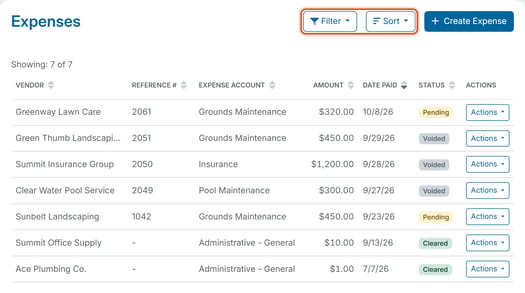
Filter
Click Filter to open the Filter Options panel. It narrows the list by:
- Vendor - type part of the payee name (the Payee Name you entered when you recorded the expense).
- Reference # - for example, a check number.
- Expense Account - the account the expense was charged to (called Expense Type on the Create Expense form). It starts on All accounts.
- Date Paid - a start and end date.
- Amount - a minimum and maximum.
- Status - Pending, Cleared, or Voided. See "What Do the Expense Status Values Mean?"
Choosing a value does not change the list until you click Apply. The list then shows only the matching expenses, the "Showing" count updates, and the Filter button shows how many filters are on (for example, Filter 1). Click Reset to clear the filters.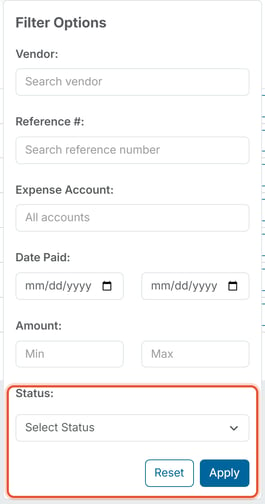
Sort
Click Sort (or the arrows on a column header) to order the list by Vendor, Reference #, Expense Account, Amount, Date Paid, or Status, ascending or descending.
Example
To find every payment made to a specific landscaping vendor last quarter, open Filter, enter the vendor's name, set the Date Paid start and end dates to cover that quarter, and click Apply. To review everything that has been cancelled, set Status to Voided.
Working with an expense
Each row has an Actions menu with Edit and Void. See "How Do I Edit an Expense?" and "How Do I Void an Expense?" for what each one does. To add a new expense, see Record an Expense.