
The Activity Log lists every upload, move, update, and deletion of files and folders in Document Center. Owners and Org Admins can view it.
When Would You Use This?
The Activity Log answers questions like "who deleted this?" or "when was this uploaded?" without needing to ask around. It's useful when someone questions a change, or when you need to confirm a file was actually uploaded or moved as expected.
How to View It
- In Document Center, click the Activity Log tab (next to Browse and Search).

- Entries are listed newest first. Scroll down to find older entries; more load as you scroll.
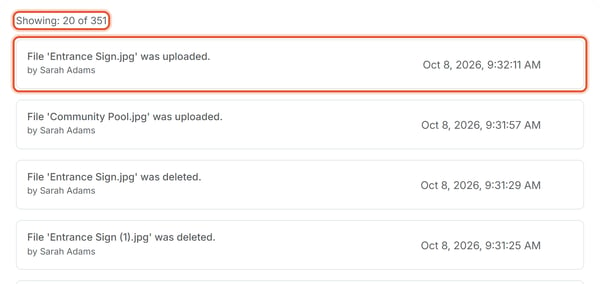
Each entry shows:
- The file or folder name involved.
- What happened: a file or folder was uploaded, moved, updated, or deleted. Renames and permission changes show as "updated"; click Details on the entry to see exactly what changed.
- Who performed the action.
- The exact date and time it happened.
Good to Know
- Activity Log entries cover both files and folders — folder-level actions like a permission change or a move show up here just like file uploads and deletes do.
- A header near the top reads "Showing: X of Y," confirming the log covers the organization's full history rather than just recent activity, and loads more entries as you scroll.
- Entries for renames, permission changes, moves, and bulk deletions include a Details button that shows what changed - for example, Changed Permission from "Admin Only" to "Member Read".