---
title: How Do I View an Invoice Schedule's Summary?
description: See an invoice schedule's lifetime billing totals, the GL accounts it posts to, and its open, paid, and late invoice counts from the Summary page.
---
[Skip to content](https://help.hoastart.app/how-do-i-view-an-invoice-schedules-summary#main-content)

Open main navigation
Close main navigation
How can we help you?
- There are no suggestions because the search field is empty.
1. [HOA Start - Empower](https://help.hoastart.app/?hsLang=en)
2. [Invoicing & Billing](https://help.hoastart.app/invoicing-billing?hsLang=en)
# How Do I View an Invoice Schedule's Summary?
This article covers a deeper view of one existing schedule: its Summary page, which totals up everything that schedule has billed and shows its Asset Type and Revenue Type.
##### **When Would You Use This?**
- See the lifetime total a recurring schedule has billed across all properties.
- Confirm which GL accounts a schedule is tied to before changing the Chart of Accounts.
- See how many invoices from a schedule are open or late.
##### **How to Get There**
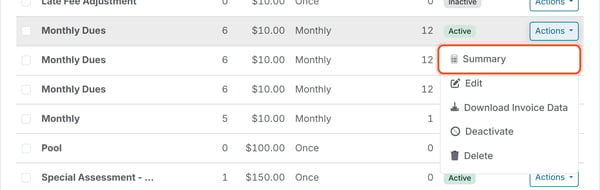
1. Go to `Balances > Invoice Schedules`.
2. Find the schedule and click `Actions` on its row.
3. Click `Summary`.
##### **What the Summary Shows**
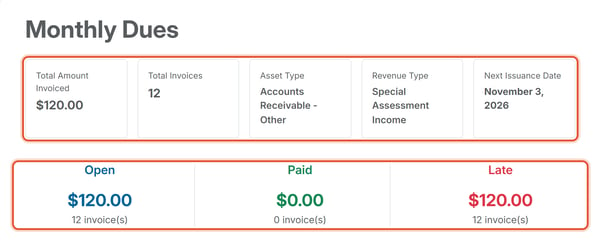
- Total Amount Invoiced — lifetime total billed.
- Total Invoices — count generated.
- Asset Type — the receivable account chosen as the Asset Type when the schedule was created.
- Revenue Type — the income account chosen as the Income Type when the schedule was created.
- Next Issuance Date — shows "None" if no future issuance scheduled.
- Open / Paid / Late — a dollar total and invoice count for each. Open counts every unpaid invoice, including late ones, so a late invoice appears in both Open and Late. Open plus Paid equals Total Invoices.
##### **The Invoices Tab**
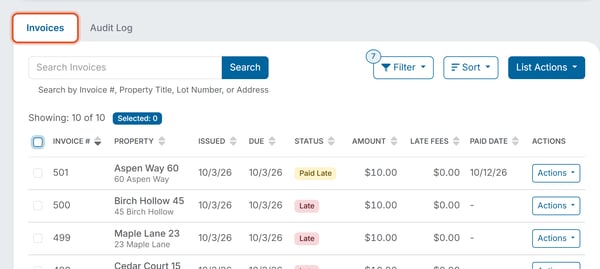
Lists every invoice this schedule has generated with the columns Invoice #, Property, Issued, Due, Status, Amount, Late Fees, Paid Date, and Actions. On a narrower window some columns are hidden. Use Search, Filter, and Sort to narrow the list.
##### **The Audit Log Tab**
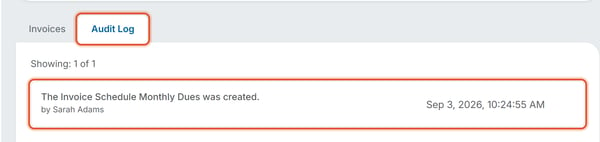
Lists every change made to the schedule itself, newest first, with who made it and when. An edit also shows a Details line that spells out what changed, for example Changed Amount from "$12.00" to "$10.00".
##### **Good to Know**
- The Summary page cannot be edited. To change the schedule, go to **Balances \> Invoice Schedules**, click **Actions** on its row, and click **Edit**. See [How Do I View and Manage Invoice Schedules?](https://help.hoastart.app/how-do-i-view-and-manage-invoice-schedules?hsLang=en) To learn why the invoice count matches the number of properties, see [How Invoice Schedules Generate One Invoice Per Property](https://help.hoastart.app/how-invoice-schedules-generate-one-invoice-per-property?hsLang=en).
- A deactivated schedule shows its own dated Audit Log entry.
***Note:*** Asset Type and Revenue Type are the Asset Type and Income Type chosen when the schedule is created.
- [Dashboard & Reporting](https://help.hoastart.app/dashboard-reporting?hsLang=en)
- [Members](https://help.hoastart.app/members?hsLang=en)
- [Properties](https://help.hoastart.app/properties?hsLang=en)
- [Documents](https://help.hoastart.app/documents?hsLang=en)
- [Email & Communication](https://help.hoastart.app/email-communication?hsLang=en)
- [Budgets & Expenses](https://help.hoastart.app/budgets-expenses?hsLang=en)
- [Invoicing & Billing](https://help.hoastart.app/invoicing-billing?hsLang=en)
- [Payments](https://help.hoastart.app/payments?hsLang=en)
- [Bank Reconciliation](https://help.hoastart.app/bank-reconciliation?hsLang=en)
- [Organization Settings](https://help.hoastart.app/organization-settings?hsLang=en)
- [Support](https://help.hoastart.app/support?hsLang=en)
[](https://hoastart.com/)
Copyright © 2026, HOA Start