
Owner only: Only the Organization Owner can transfer ownership. If you are an Org Admin, you won't see Organization Ownership in Organization Settings.
Every organization has exactly one Org Owner — the single account with ultimate control over the organization's online presence. This is different from an Admin, who has elevated but not full/exclusive control (see How Do I Manage Organization Admins). This role can be reassigned to a different member at any time. Only the Organization Owner can transfer ownership. Org Admins do not see Organization Ownership in Organization Settings. The transfer takes effect immediately and you cannot undo it yourself.
When You'd Use This
- The current board president (Org Owner) is rotating off the board and a new president is taking over.
- The person who originally set up the organization's account is no longer involved with the community.
Before You Start
The person you transfer ownership to must already be an Organization Admin. A regular member does not appear in the transfer list. If the person is not an admin yet, add them first (see How Do I Manage Organization Admins).
How to Get There
- Click Organization Settings in the left nav.
- Click the Settings tab, then choose Organization Ownership from the left-hand sub-navigation.
How to Transfer
- The page opens with a standing warning banner: transferring gives the new owner full control of the organization's online affairs and removes owner privileges from the current owner. This banner always shows, before you've clicked anything — it's a reminder of what the action does, not a confirmation step.
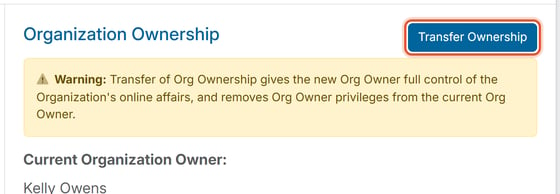
- Below the warning, the page displays the organization's current Org Owner (name and email) so you can confirm who you're about to replace.
- Click Transfer Ownership. This opens a Select New Organization Owner window.
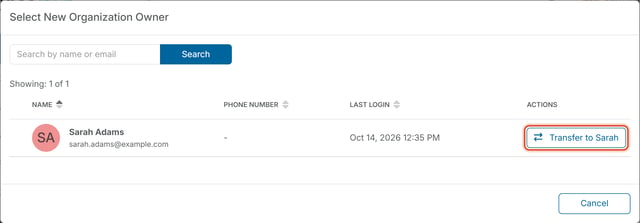
- Use the Search by name or email box and click Search to filter the member list, or leave it blank to see all Organization Admins (shown as "Showing: X of Y" above the results table).
- Find the member you want to promote in the results table (Name, Phone Number, Last Login, Actions columns) and click Transfer to followed by the member's first name on that member's row, for example "Transfer to Sam". Each row has its own button, so check the name before you click.
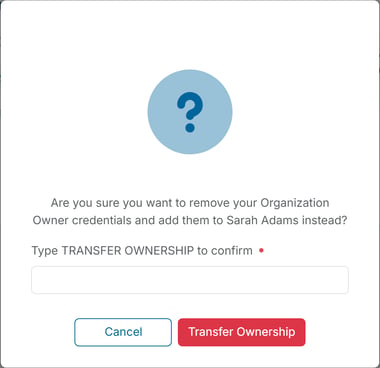
Clicking that row's Transfer button opens one last confirmation dialog: "Are you sure you want to remove your Organization Owner credentials and add them to [New Owner] instead?" This requires typing TRANSFER OWNERSHIP into a confirmation field before the red Transfer Ownership button will complete the change — a deliberate extra safeguard on an action that can't be undone except by repeating the flow in reverse.
After the Transfer
Once ownership is transferred, the original Owner becomes an Organization Admin. If they are leaving the board or should have all additional permissions removed, the new Owner must also remove them as an admin in Manage Organization Admins (Organization Settings > Settings > Manage Organization Admins). See How Do I Manage Organization Admins.
Important: This is a high-impact, no-undo action — the current Org Owner immediately loses owner-level privileges, and the new owner gains full control of the organization's online affairs. Double-check that you've selected the correct member by name before transferring. Reversing a transfer requires repeating this same flow in the opposite direction.