---
title: How Do I Switch Between List and Grid View in Document Center
description: Document Center Grid View
---
[Skip to content](https://help.hoastart.app/how-do-i-switch-between-list-and-grid-view-in-document-center#main-content)

Open main navigation
Close main navigation
How can we help you?
- There are no suggestions because the search field is empty.
1. [HOA Start - Empower](https://help.hoastart.app/?hsLang=en)
2. [Documents](https://help.hoastart.app/documents?hsLang=en)
# How Do I Switch Between List and Grid View in Document Center
Switch Document Center between its default list layout and a grid of tiles.
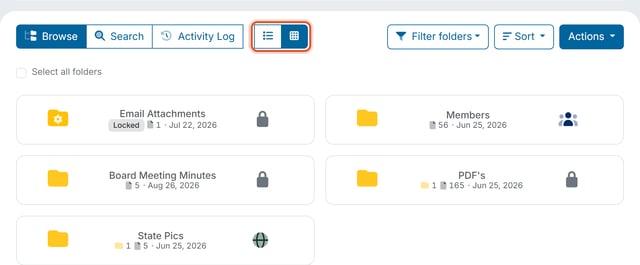
Document Center opens as a list by default. The Grid view button in its toolbar shows your folders and files as tiles instead.
**When would you use this?**
- Browsing a folder at a glance, where each tile shows the name, size or item count, and date without the extra table columns.
**How to Get There**
1. Click `Document Center` in the left nav.
2. In the toolbar, to the right of the Browse, Search, and Activity Log tabs, click the Grid view button (the one with the small grid of squares). The List view button is the one next to it.

3. Your folders and files now appear as tiles. To switch back, click the List view button. Document Center remembers the view you chose the next time you open it.
**Good to Know**
- The view toggle only changes how documents are displayed — it doesn't change which documents you can see or what actions are available on them.
- In grid view, hover over a tile to show a checkbox and a three-dot menu with the same actions as the Actions button in list view.
***Note:*** The view buttons are hidden on very narrow screens such as a phone; there Document Center always shows the list.
- [Dashboard & Reporting](https://help.hoastart.app/dashboard-reporting?hsLang=en)
- [Members](https://help.hoastart.app/members?hsLang=en)
- [Properties](https://help.hoastart.app/properties?hsLang=en)
- [Documents](https://help.hoastart.app/documents?hsLang=en)
- [Email & Communication](https://help.hoastart.app/email-communication?hsLang=en)
- [Budgets & Expenses](https://help.hoastart.app/budgets-expenses?hsLang=en)
- [Invoicing & Billing](https://help.hoastart.app/invoicing-billing?hsLang=en)
- [Payments](https://help.hoastart.app/payments?hsLang=en)
- [Bank Reconciliation](https://help.hoastart.app/bank-reconciliation?hsLang=en)
- [Organization Settings](https://help.hoastart.app/organization-settings?hsLang=en)
- [Support](https://help.hoastart.app/support?hsLang=en)
[](https://hoastart.com/)
Copyright © 2026, HOA Start