
What Folder Permissions Control
Every folder in Document Center has a permission level that controls who can see its contents. Permissions are set once per folder and automatically apply to every file inside it — there's no separate setting on individual files, so moving a file into a folder immediately gives it that folder's visibility.
- Admin only — only Owners and Org Admins can see the contents. Best for board-only material or sensitive financial documents.
- Member read — visible to all members of the organization. Best for shared reference material like meeting minutes or membership forms.
- Public — anyone with the link can fetch the contents, with no login required. Best for content meant to be shared outside the member portal, such as a document linked from a public website.
Example: A "Board Financials" folder set to Admin only keeps sensitive budget documents away from regular members, while a "Meeting Minutes" folder set to Member read lets every member log in and review them.
Warning: When you set a folder to Public, every file in it, including files you add later, can be opened by anyone who has the link, with no login.
How to Change a Folder's Permission
- In Document Center, go to Browse.
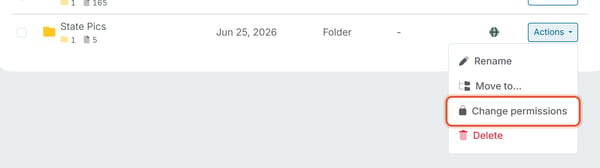
- Click Actions at the end of the folder's row and choose Change permissions. Exception: the Email Attachments folder is a locked system folder — it has no checkbox and no Actions menu, so its permission level can't be changed this way. To change several folders at once, tick their checkboxes, then click Actions in the toolbar above the list and choose Change permissions. Folders that sit inside another folder do not have this option; they use the permission of the folder they are in.
- In the Change permissions window, click Admin only, Member read, or Public (the current choice is already marked).
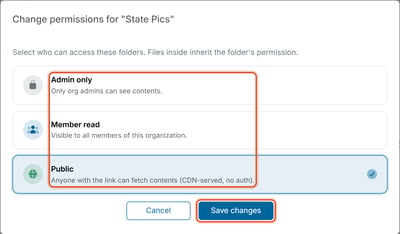
- Click Save changes.
Spotting a Folder's Current Permission at a Glance
Document Center opens in list (row) view by default, and each folder's row shows an icon that matches its current permission level in its own column, so you don't have to open the folder to check access. Switching to grid (tile) view shows the same icon on each tile; your chosen view is remembered even after navigating away or switching organizations:
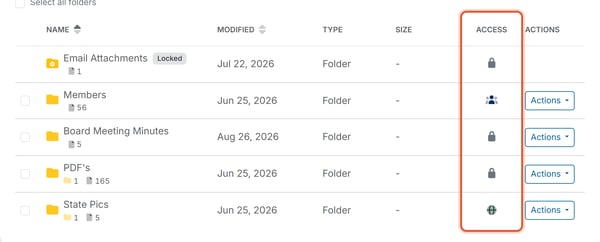
- A lock icon means Admin only.
- A people icon means Member read.
- A globe icon means Public.
Filtering Folders by Permission Level
To quickly find every folder set to a specific permission level (for example, to audit which folders are Public), go to the main Document Center page (outside any folder) and use the Filter folders button next to Sort:
- Click Filter folders.
- Under Access, click the Select Access dropdown and choose Admin Only, Member Read, or Public.
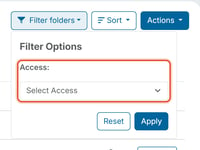
- Click Apply. Only the matching folders are shown. To see all folders again, click Filter folders, then Reset.
Good to Know
- Changing a folder's permission is retroactive — every file already inside the folder is affected immediately, along with anything added later.
- Permission changes are recorded in the Activity Log, so you can see who changed a folder's access level and when. They appear as "updated" entries with a Details button (see How Do I View the Document Center Activity Log).