
Organization Settings > Settings has a Reply-To Email Address field. This is the address that shows up as the "reply to" when a member receives an automated email from the organization (an invoice notice, a late fee notice, a receipt, and so on) — if the member hits Reply in their inbox, their message goes to this address instead of a system no-reply address.
When would you use this?
- Members keep replying to invoice emails asking billing questions, and those replies are going nowhere because there's no working reply-to address on file.
- The board wants member replies to automated notices routed to the property manager or treasurer's inbox instead of whoever originally set up the organization.
- The organization changed office managers and the old reply-to address is no longer monitored.
How to Get There
- Click Organization Settings in the left nav.
- The Settings tab opens first and shows the General section. If you are on another tab, click Settings, then General.
- Enter the address you want replies routed to in the Reply-To Email Address field.
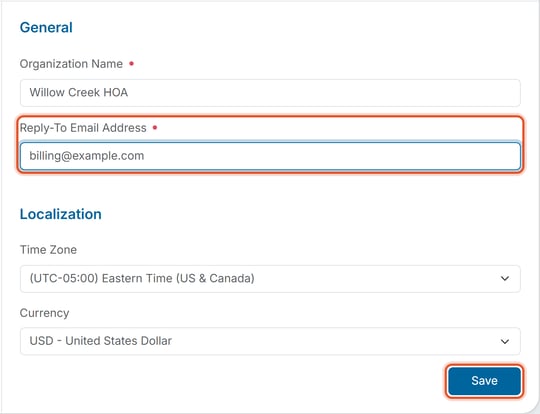
- Click Save at the bottom of the page.
Good to Know
- Reply-To Email Address is a required field — the platform will not let you save a blank value here.
- This only controls where a reply lands if a member responds to an automated email; it does not change who the email appears to be sent from.
Note: Changing this address is recorded in the organization's Activity Log, including the previous and new value — see "How Do I View the Organization Activity Log?"