
When Would You Use This?
Once an organization has dozens or hundreds of documents spread across multiple folders, browsing folder-by-folder to find one file is slow. Search looks across every folder at once by name, so you don't need to know which folder a file lives in.
How to Search
- In Document Center, click the Search tab (next to Browse and Activity Log).

- Type a name — or part of one — into the Search all files and folders box.
- Click Search.
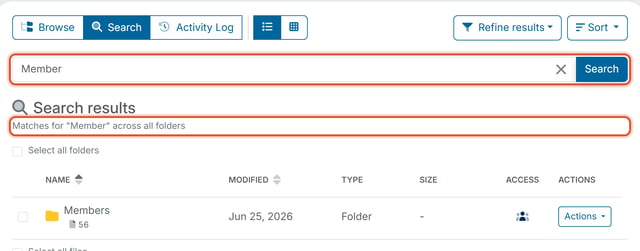
Results show every matching file or folder across the whole organization, labeled "Matches for '[search term]' across all folders." If nothing matches, you see "No documents matched your search." Try a different word, or clear your filters.
Example: Searching "Member" returns not just files with "Member" in the name from different folders, but also any folder named "Members" — the search checks both files and folder names together.
Refining and Sorting Results
Once search results are showing, the Filter folders button becomes Refine results. Use it to narrow the matches by Access (Admin Only, Member Read, or Public), File type (such as PDF or Image), or Modified date, then click Apply. Use Sort to reorder them.
Good to Know
- Search matches on name only — it does not search inside file contents (for example, text inside a PDF).