---
title: How Do I Resend Invoices
description: Resend Invoices
---
[Skip to content](https://help.hoastart.app/how-do-i-resend-invoices#main-content)

Open main navigation
Close main navigation
How can we help you?
- There are no suggestions because the search field is empty.
1. [HOA Start - Empower](https://help.hoastart.app/?hsLang=en)
2. [Invoicing & Billing](https://help.hoastart.app/invoicing-billing?hsLang=en)
# How Do I Resend Invoices
Balances \> Invoice Dashboard lets you resend the invoice notification email either one invoice at a time from a row's own Actions menu, or in bulk for a whole set of invoices at once from the List Actions menu.
**When would you use this?**
- A member says they never received an invoice email, and you want to trigger it again without re-creating the invoice.
- A batch of invoices went out with an error in the org's email settings (for example, before a Reply-To Email Address was fixed), and you need to resend all of them at once now that it's corrected.
- A member changed their email address on file and needs a copy of a recent invoice sent to the new address.
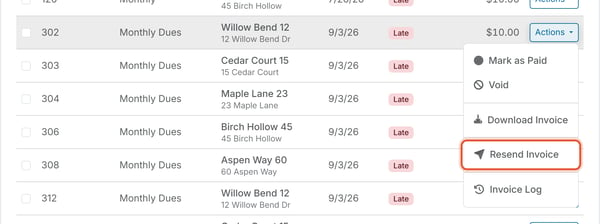
**Resending a Single Invoice**
1. Go to `Balances > Invoice Dashboard`.
2. Find the invoice and click its row's Actions menu.
3. Click `Resend Invoice`.
**Resending Invoices in Bulk**
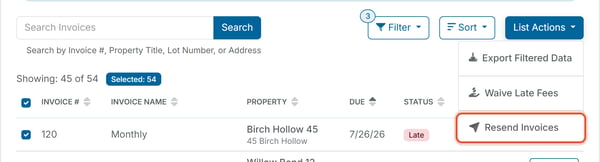
1. Optionally use Search or Filter to narrow the list to the invoices you want.
2. Check the boxes next to the invoices to resend. The Selected: N count next to Showing: shows how many invoices are selected. The checkbox in the table header selects or clears every invoice that matches your filters, including invoices not yet shown on the page.
3. Click `List Actions`.
4. Click `Resend Invoices`. This option is greyed out when Selected is 0.
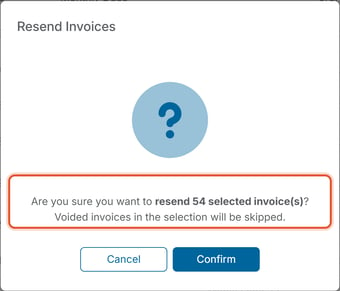
5. A confirmation dialog asks: "Are you sure you want to resend \[N\] selected invoice(s)? Voided invoices in the selection will be skipped." Click `Confirm` to resend the invoice email for every eligible invoice in the selection.
**Good to Know**
- Resending an invoice sends the same invoice notification email again — it does not create a new invoice, change any amounts, or reset the due date.
- The single-invoice Resend Invoice option sends immediately with no confirmation step, while the bulk Resend Invoices option always shows a confirmation dialog first since it can affect many members at once.
- Bulk resend automatically skips Voided invoices in your selection — you don't need to filter those out yourself first.
***Note:*** Because this sends a real email to the member on the invoice, double-check you have the right invoice (or the right set of invoices) selected before confirming a bulk resend. The Selected count shows how many invoices the resend includes.
- [Dashboard & Reporting](https://help.hoastart.app/dashboard-reporting?hsLang=en)
- [Members](https://help.hoastart.app/members?hsLang=en)
- [Properties](https://help.hoastart.app/properties?hsLang=en)
- [Documents](https://help.hoastart.app/documents?hsLang=en)
- [Email & Communication](https://help.hoastart.app/email-communication?hsLang=en)
- [Budgets & Expenses](https://help.hoastart.app/budgets-expenses?hsLang=en)
- [Invoicing & Billing](https://help.hoastart.app/invoicing-billing?hsLang=en)
- [Payments](https://help.hoastart.app/payments?hsLang=en)
- [Bank Reconciliation](https://help.hoastart.app/bank-reconciliation?hsLang=en)
- [Organization Settings](https://help.hoastart.app/organization-settings?hsLang=en)
- [Support](https://help.hoastart.app/support?hsLang=en)
[](https://hoastart.com/)
Copyright © 2026, HOA Start