
Disconnect a member from a property when they no longer own or rent it. Owners and Org Admins can do this from the Contacts tab of the Property Profile page.
When would you use this?
- A homeowner sold their unit and should no longer be listed as an Owner of that property.
- A Tenant moved out and the unit no longer has a Tenant.
- A member was attached to the wrong property by mistake.
Steps
- Click Properties in the left nav.
- Find the property, click its row Actions menu, and choose View.
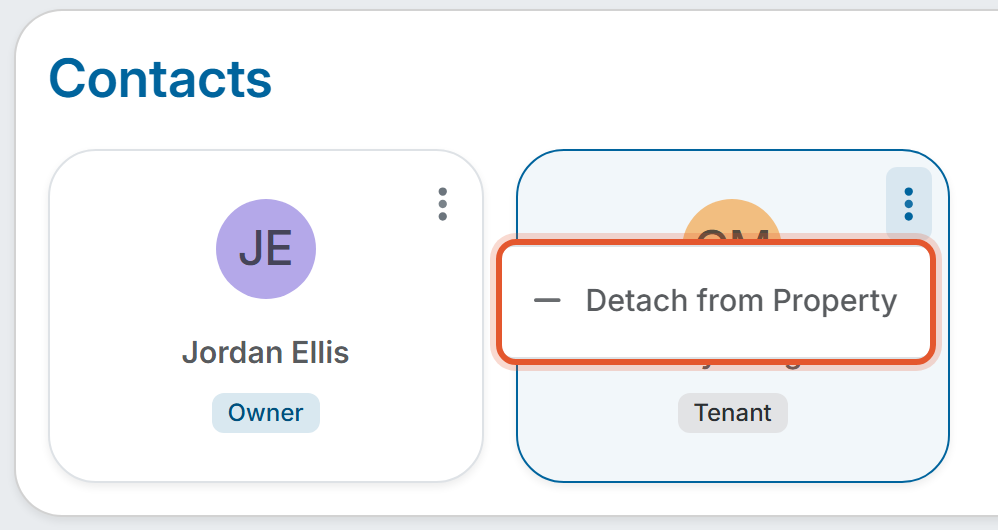
- Click the Contacts tab. Each member attached to the property appears as a card showing their name and an Owner or Tenant badge.
- Click the three-dot menu in the top-right corner of the member's card and choose Detach from Property.
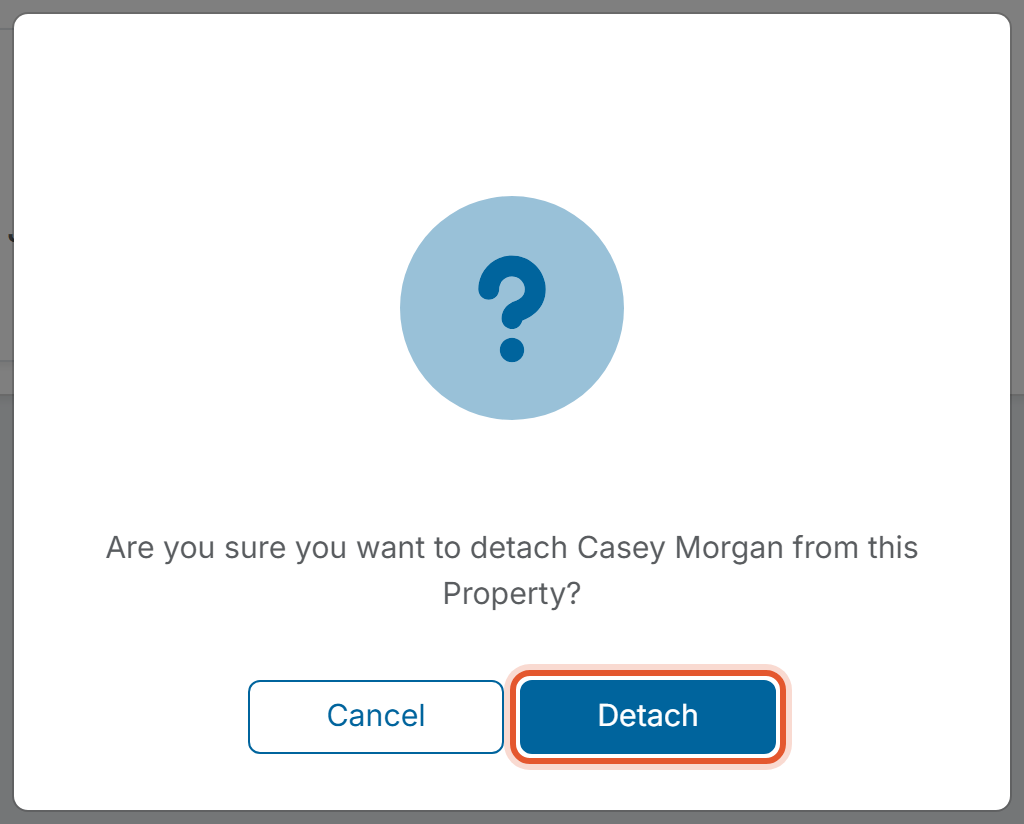
- A confirmation window asks "Are you sure you want to detach [member name] from this Property?" Click Detach. Click Cancel to keep the member attached.
- A message reads "Removed Member from Property." Click OK.
What you will see afterwards
- The member's card disappears from the Contacts tab. If no one else is attached, the tab reads "No members are associated with this property."
- The Member Count for the property on the Properties list drops by one.
- The property's Activity Logs tab adds an entry such as "[Member name] was removed from [property street address]." with the name of the person who made the change and the date and time.
- The property no longer appears on the member's own Properties tab.
Good to Know
- Detaching does not delete the member. The member's record stays in the Members list.
- To reconnect a member later, attach them again as an Owner or Tenant (see the related articles below).