
This article shows you how to start a payment on open invoices from the Dashboard, a member's profile, or a property's profile. Owners and Org Admins can do this from the Pay button on any of those three screens.
Before you start: Paying starts from the Select Payment Method window. If you have not saved a payment method yet, add one first by following How Do I Add a Payment Method to My User Profile?
When would you use this?
- You own a home in the community and want to pay your own open invoices straight from your Dashboard.
- You are reviewing a member's account and want to pay that member's open invoices from their Invoicing tab.
- You are looking at one property's balance and want to pay its open invoices from the property's Invoicing tab.
Steps
- Go to the screen that lists the invoices you want to pay. The Pay button is in the Outstanding Invoices section of each of these screens:
- Dashboard: click Dashboard in the left nav and scroll to the Outstanding Invoices card. This card lists the invoices for the properties shown under My Properties on your own Dashboard. If no properties are assigned to you, the card shows No results found and the Pay button stays gray.
- Member profile: click Members in the left nav, open the member's profile, and click the Invoicing tab.
- Property profile: click Properties in the left nav, open the property's profile, and click the Invoicing tab.
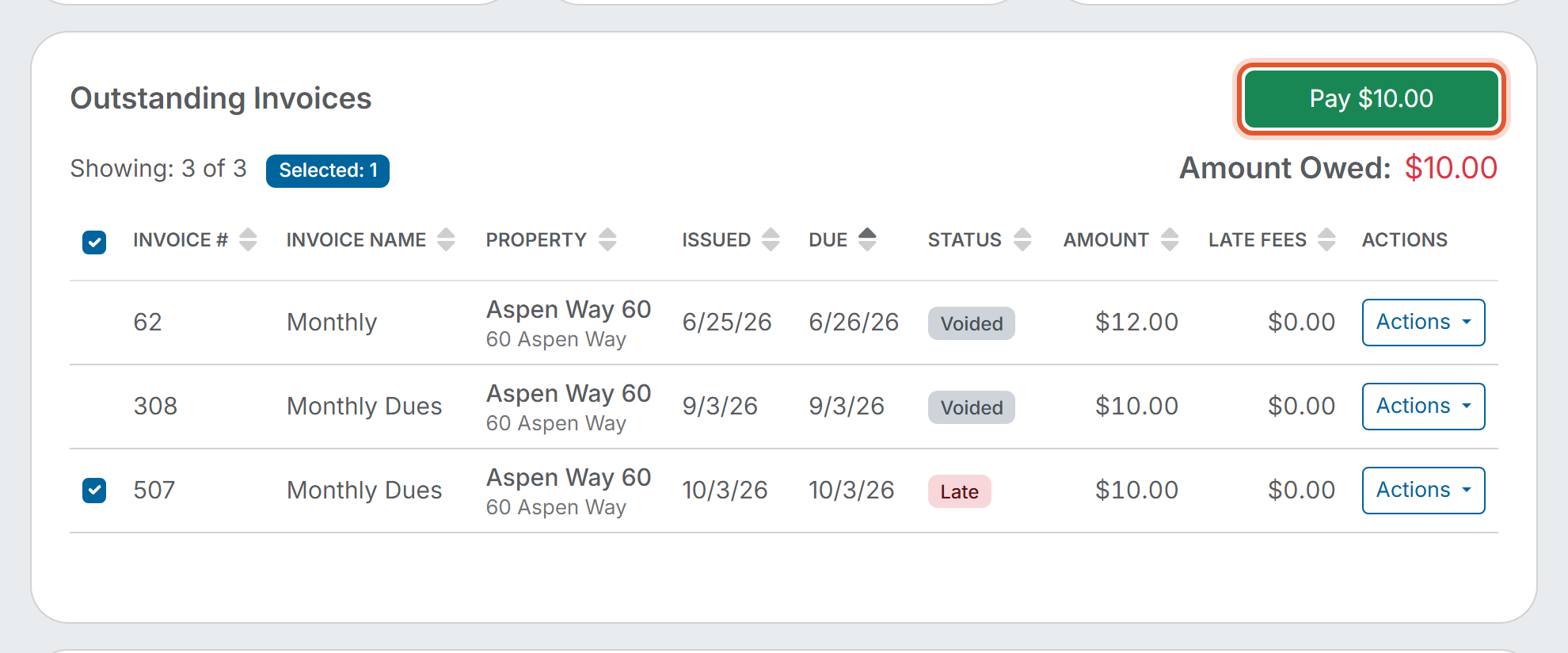
- Look at the check boxes on the left of each row. Every invoice that is not voided starts out checked, and the Selected counter above the table shows how many are checked. Voided invoices stay in the list but do not have a check box, so they are never included. Uncheck any invoice you do not want to pay now, or check it again to add it back. The check box in the table header clears or selects every invoice at once.
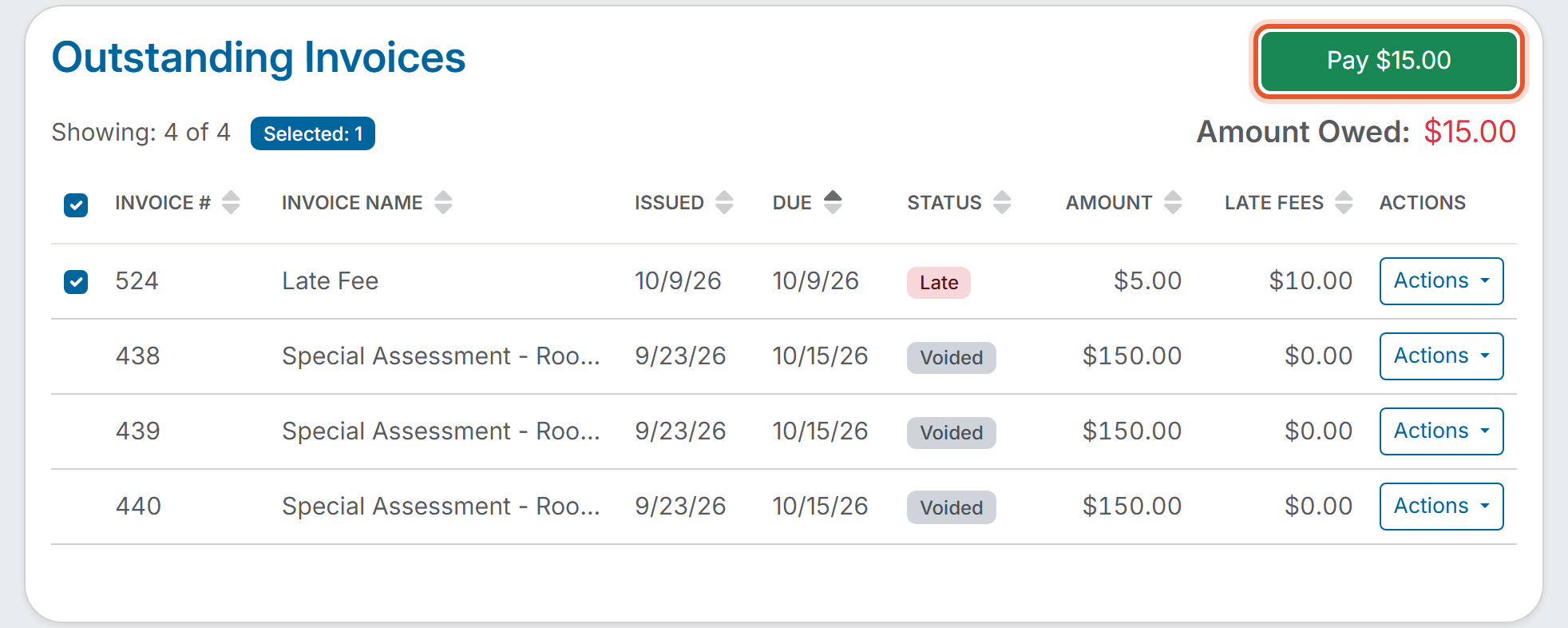
- Read the amount on the green button. The button reads Pay followed by the total of the checked invoices, including any late fees on them. For example, a checked invoice with an Amount of $5.00 and Late Fees of $10.00 makes the button read Pay $15.00. The total changes each time you check or uncheck a row.
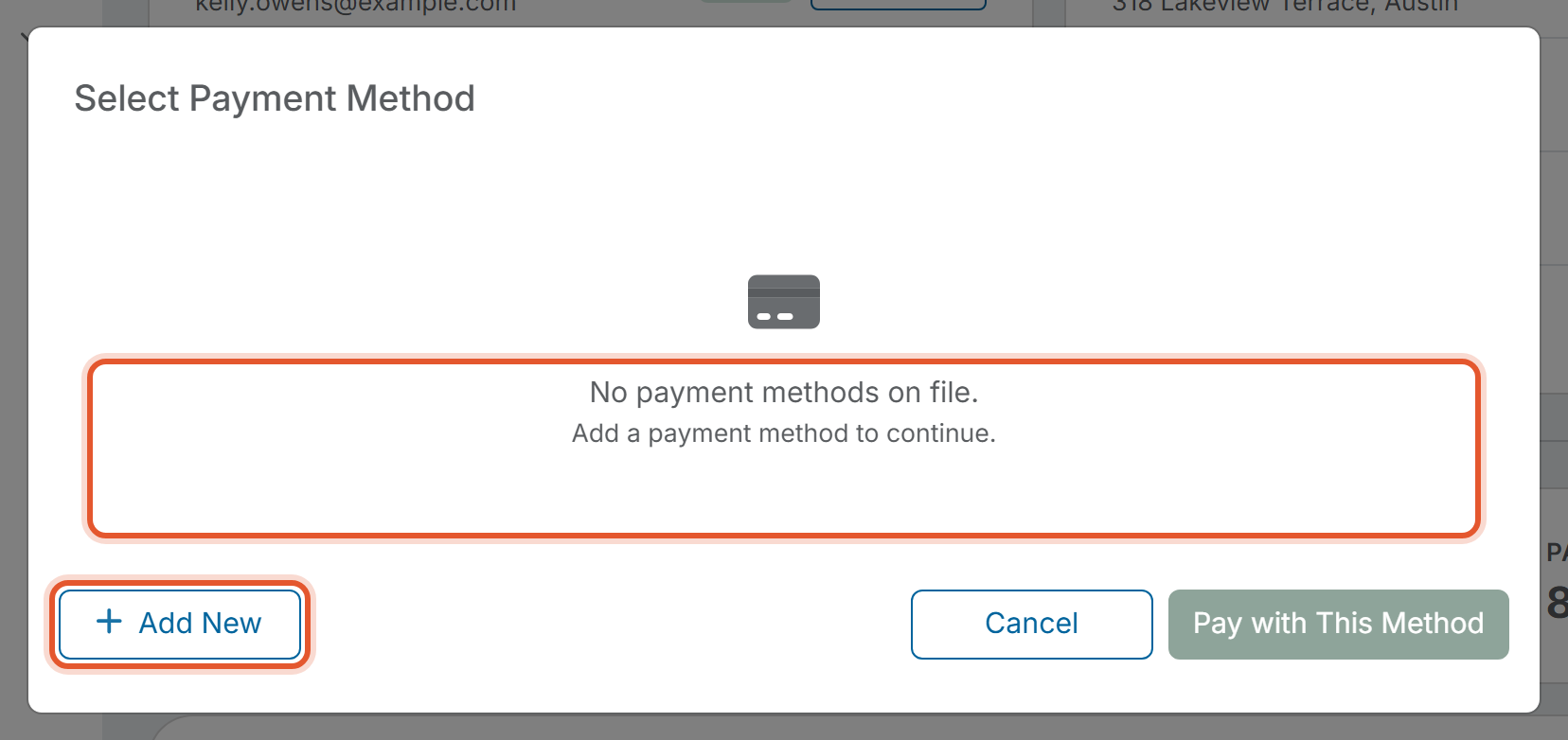
- Click the Pay button. A window titled Select Payment Method opens.
- If you have not saved a payment method, the window shows No payment methods on file. Add a payment method to continue. The Pay with This Method button stays gray, so no payment can be started from this window yet. Click Cancel to close the window and add a payment method to your profile first, or click Add New to see the ways to add one.
- After you click Add New, the window changes to Add Payment Method and offers three choices: Add & Save Card (save a credit card for this and future payments), Pay Once Without Saving (enter card details for a one-time payment), and Bank Account (ACH) (the card tells you to add a bank account in your profile settings to pay via ACH). Click Back to return to the Select Payment Method window, then click Cancel to close it without paying.
Good to Know
- On the Dashboard, the Pay button is gray and reads only Pay when no invoice is checked. Check at least one row and the button shows the amount.
- The Amount Owed figure beside the button stays the same when you check or uncheck rows. The amount you are about to pay is the one on the Pay button.
- If you want to record a payment that was made outside the system, such as a check or cash, use How Do I Mark or Unmark an Invoice as Paid instead.