
This article shows you how to open a folder in Document Center, move into folders inside other folders, and get back to the folder above or to the top level. Owners and Org Admins can do this from Document Center in the left nav.
When would you use this?
- You keep a "Meeting Minutes" folder with a separate folder for each year inside it, and you want to open the right year.
- You are two folders deep and want to return to the folder above without starting over from the top.
- You want to check a folder's access level and when it was last changed before you add or move files.
Steps
- Click Document Center in the left nav. The Browse tab lists your top-level folders.
- Click the name of the folder you want to open. The folder's contents replace the list, and a header appears at the top of the folder.
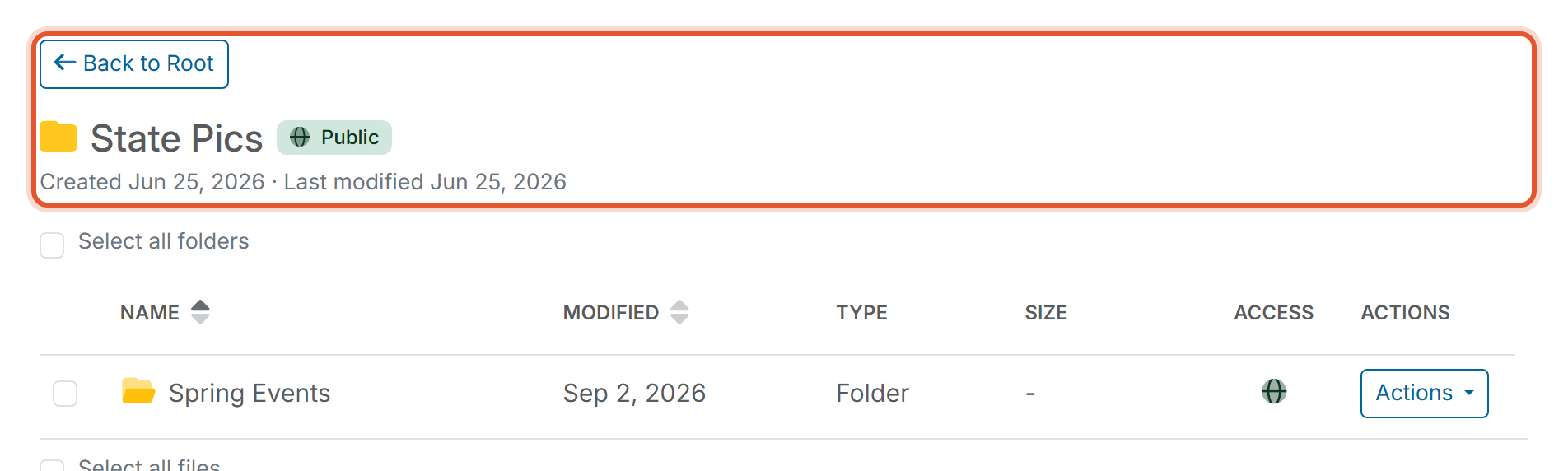
- If the folder holds other folders, click a folder's name to open it. A folder inside another folder is a subfolder, and you can keep opening subfolders the same way.
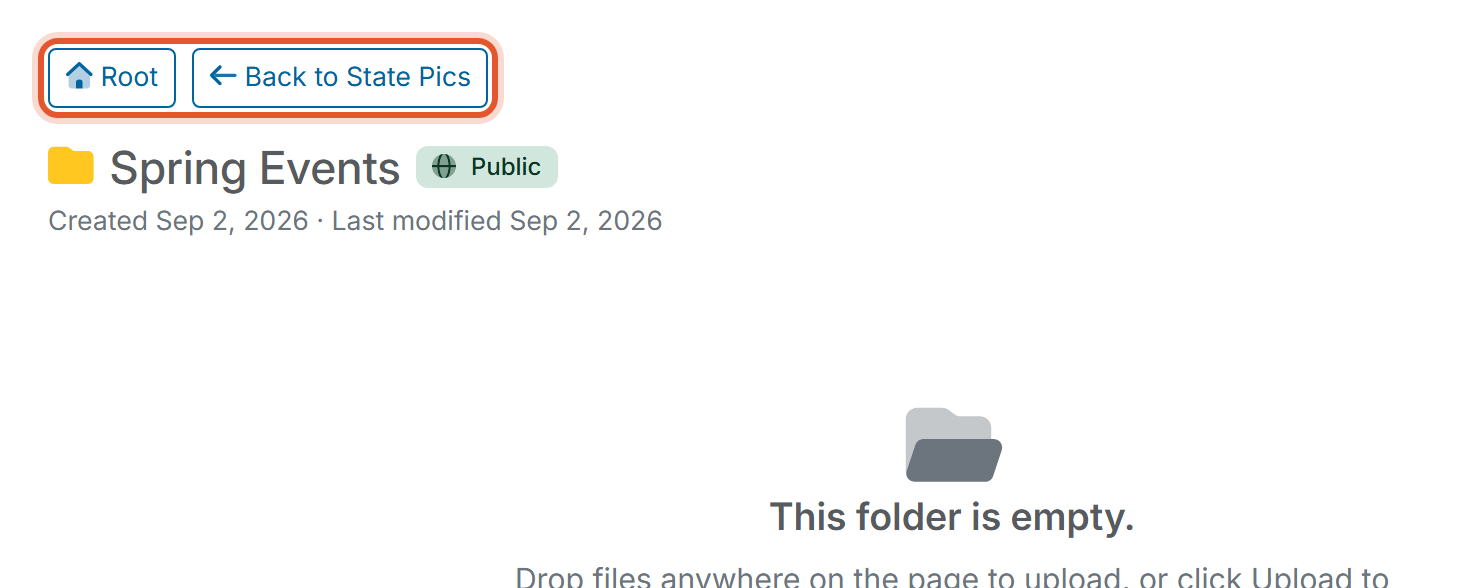
- To go back, use the buttons at the top of the folder. In a top-level folder the button is Back to Root. In a subfolder there are two buttons: Root takes you to the top level, and Back to followed by the name of the folder above (for example, Back to State Pics) takes you up one level.
What You See in a Folder
- Folder header: the folder's name, a badge with its access level (Admin only, Member read, or Public), and a line such as "Created Jun 25, 2026 · Last modified Jun 25, 2026".
- Folders table: any subfolders, with Name, Modified, Type, Size, Access, and Actions columns. A Select all folders checkbox sits above it.
- Files table: the files in the folder, with the same columns. A Select all files checkbox sits above it. Folders and files are listed in separate tables.
- Empty folder: a folder with nothing in it shows "This folder is empty." and "Drop files anywhere on the page to upload, or click Upload to choose files."
Good to Know
- Inside a folder, Actions in the toolbar offers Upload files and New folder. New folder creates the new folder inside the folder you are viewing. See How Do I Upload Files to Document Center and How Do I Create and Organize Folders in Document Center.
- A subfolder uses the access level of the folder it sits in. The New folder window in a folder says "Inherits the parent folder's permission" and "Only top-level folders set permission." A subfolder's Actions menu offers Rename, Move to…, and Delete, with no Change permissions.
- When you change a top-level folder's access level, its subfolders and files show the new level. To change it, see How Do I Set Permissions on a Document Center Folder.
- The folder header is the quickest place to confirm which folder you are in and who can see its contents.