
Owner only: Only the Organization Owner can manage Organization Admins. If you are an Org Admin, you won't see this option; ask your Organization Owner to add or remove admins.
Organization Admins have elevated privileges to manage an organization's settings, members, and properties — beyond what a regular member can do. Only trusted members should be given this access, since admins can change organization-wide settings, not just their own profile. Only members who already exist in the organization can be made an Admin — admin rights cannot be assigned during member creation. Manage Organization Admins is available to the Organization Owner; Organization Admins don’t see it in their Settings.
What an Admin Can Do That a Regular Member Can't
An Org Admin sees the same menus as the Owner (Dashboard, Members, Properties, Document Center, Message Center, Balances, Financials, Organization Settings, Support) and can change organization settings. An Org Admin does not see Organization Ownership or Manage Organization Admins in Organization Settings. "Administrator" appears in the Role column of the Members list and in the member's profile header.
Example: An HOA's treasurer needs to work directly on invoicing questions and financial settings, but the board doesn't want to hand him full account ownership (which would let him do things like transfer the organization to a different owner or close it out). Granting him the Admin role solves this — he gets Admin access without changing who owns the account.
How to Get There
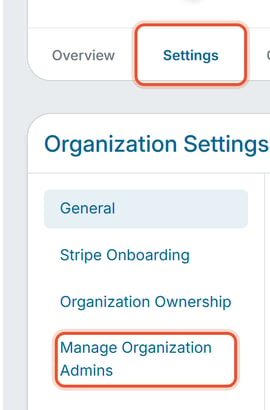
- Click Organization Settings in the left nav.
- Click the Settings tab, then choose Manage Organization Admins from the left-hand sub-navigation.
Granting Admin Access
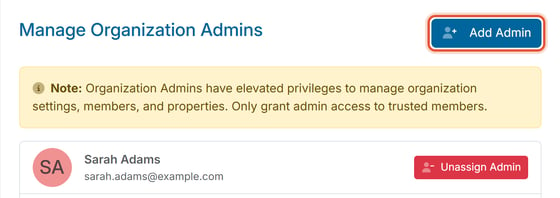
- Click Add Admin.
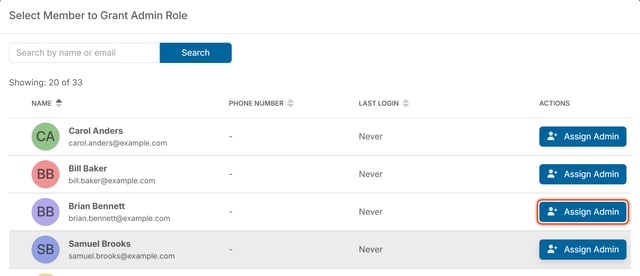
- In the "Select Member to Grant Admin Role" list, find the member and click Assign Admin on their row. To narrow a long list, type a name or email in the search box and click Search.
- A confirmation dialog asks "Are you sure you want to assign Administrator privileges to [Member Name]?" You can optionally add Notes explaining the grant.
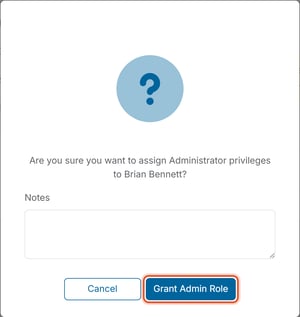
- Click Grant Admin Role to confirm. A message, “Role has been added successfully.”, appears — click OK. The member now appears in the Manage Organization Admins list.
Removing Admin Access
- From the same Manage Organization Admins screen, find the admin in the list.
- Click Unassign Admin next to their name.

- A confirmation dialog asks "Are you sure you want to remove Administrator privileges from [Member Name]?" You can optionally add Notes explaining the removal.
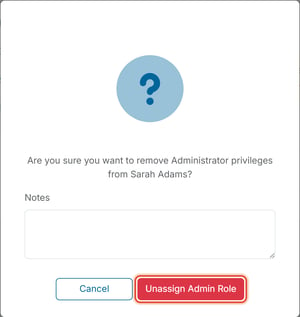
- Click Unassign Admin Role to confirm. The member is removed from the admins list and reverts to a regular member.
Good to Know
- Admin status shows up read-only in two places: as "Administrator" in the Role column on the organization's Members list, and as an "Administrator" label under the member's name on their own Member Profile page. Neither location has a toggle — the Admin role can only be granted or removed from Manage Organization Admins.
- An organization can have multiple admins at once; there's no limit on how many.
- Removing a member's admin access does not deactivate or delete their member account — they simply revert to a regular member and the "Administrator" label and permissions disappears.
- Granting the Admin role does not transfer ownership of the organization — an Admin cannot do things like transfer or close the organization's account. That level of control belongs only to the Org Owner; see "How Do I Transfer Organization Ownership".