
The Storage Cap
The top of Document Center always shows a storage usage bar with total capacity, amount Used, amount in Trash, and Free space remaining. The storage panel at the top shows how much of your organization's limit is in use. Owners and Org Admins can see the storage bar and use Empty Trash.
Why Trash Still Counts Against the Cap
Deleting a file moves it to Trash, but there is no way to restore anything from Trash, so deleting is permanent — see "Deleting a File" below. Even so, anything sitting in Trash still counts against the 512 MB cap until Trash is emptied, so deleting files doesn't free up space by itself.
Example: An organization is close to its 512 MB limit and needs room for a new batch of scanned documents. Deleting old files alone won't help — Trash needs to be emptied afterward to actually reclaim the space.
Deleting a File
Warning: Deleting a file cannot be undone from Document Center. The file moves to Trash and keeps counting against your storage until you empty Trash (see "Emptying Trash" below).
- Open the folder that contains the file.
- Click Actions at the end of the file's row.
- Choose Delete.
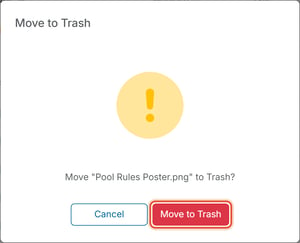
- In the confirmation, click Move to Trash.
Clicking Delete opens a confirmation dialog — Move "[file name]" to Trash? — and confirming sends the file to Trash. There is no way to restore a file from Trash, so treat deleting a file as permanent — it keeps counting against your storage until Trash is emptied, but you can't get it back.
Emptying Trash
Warning: Emptying Trash permanently deletes everything in it. This cannot be undone.
- In Document Center, check the storage bar's Trash amount.

- Click Empty Trash.
- In the confirmation window ("This will permanently delete everything in the Trash. This can't be undone. Are you sure you want to continue?"), click Empty Trash again.
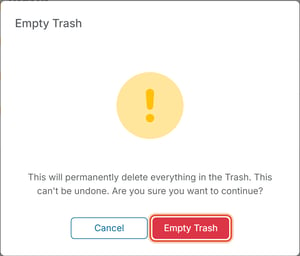
Emptying Trash permanently removes everything in it and frees the corresponding space from the storage cap.
Good to Know
- Files in Trash can't be restored — there's no restore option anywhere in Document Center — so deleting a file is already permanent. Emptying Trash simply clears the space those files still occupy, so make sure you really want a file gone before you delete it.
- Watching the Free number is the simplest way to tell whether an organization is close to running out of Document Center space; if Free is low, check whether Trash has old files that can be permanently cleared first.