---
title: How Do I Invite a Member So They Can Log In
description: invite a member so they
---
[Skip to content](https://help.hoastart.app/how-do-i-invite-a-member-so-they-can-log-in#main-content)

Open main navigation
Close main navigation
How can we help you?
- There are no suggestions because the search field is empty.
1. [HOA Start - Empower](https://help.hoastart.app/?hsLang=en)
2. [Members](https://help.hoastart.app/members?hsLang=en)
# How Do I Invite a Member So They Can Log In
Adding a member to the system and giving them a working login are two separate steps. Adding a member (see "[How Do I Add a New Member to an Organization](https://help.hoastart.app/how-do-i-add-a-new-member-to-an-organization?hsLang=en)") only creates their record. Inviting them is what actually sends the email that lets them set their own password and log into their portal.
##### **Understanding member status**
After a member is added, the Members list shows a Status badge for each person. Values you may see include:
- **Created** — the member record exists but they haven't been invited yet, and haven't set up their own login.
- **Invited** — an invitation email has been sent, but the member hasn't finished setting their password yet.
- **Active** — the member has completed sign-up and can log in.
- **Expired** — a previous invitation is no longer valid. Choose Invite from the member's row-level Actions menu to send a new one.
- **Deactivated** — the member's access has been turned off. See [How Do I Activate or Deactivate a Member?](https://help.hoastart.app/how-do-i-activate-or-deactivate-a-member?hsLang=en)
A member showing **Created** has a row-level Actions menu with only three options: View, Invite, and Delete.
##### **Steps to send an invite**
1. From the Members list, find the member (Status shows Created), and open their row-level Actions menu.
2. Choose Invite.
3. Confirm in the dialog that appears: "Are you sure you want to send an invitation to \[Name\]?" Click Send Invitation to proceed, or Cancel to back out.
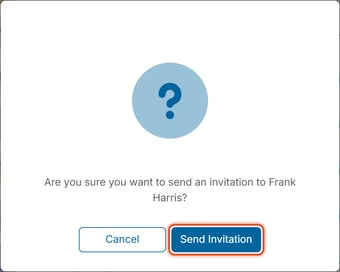
You can also send an invitation from a member's profile (Actions \> Send Invitation), or select several Created members and choose Invite from List Actions.
Once sent, a few things happen right away:
- The member's Status badge changes from Created to Invited.
- Their row-level Actions menu changes from View / Invite / Delete to View / Uninvite / Delete. (Uninvite reverses the invite — useful if you clicked Invite on the wrong person.)
- A confirmation toast appears reading "Member invitation email has been sent successfully."
##### **Canceling an invitation**
If a member was invited by mistake or shouldn't have portal access yet, open their row-level Actions menu and choose Uninvite.
##### **Checking whether the email actually arrived**
If a member says "I never got my invite," check Message Center \> Email History. Every invitation email shows up there with a delivery status such as Delivered or Opened. See "[Understand Email Status Values](https://help.hoastart.app/understand-email-status-values?hsLang=en)" for the full list of possible statuses and how to read that log.
##### **What the member sees**
The invitation email contains a Join button. Clicking it takes the member to a "Set Your Password" screen with the subtext "Create a secure password for your new account," a New password field, a Re-enter new password field, and a Set Password button. For the rules a new password must meet, see [What Are the Member Password Requirements](https://help.hoastart.app/what-are-the-member-password-requirements?hsLang=en).
Each invite link is single-use. Once a member finishes setting their password, the same link cannot be reused — reopening it lands on a "Member invitation already accepted" page with a Return to Login button instead of the password screen. If a member needs to set up their account again (for example, they didn't finish the first time, or the link expired), send a fresh Invite from their row-level Actions menu rather than reusing an old email.
- [Dashboard & Reporting](https://help.hoastart.app/dashboard-reporting?hsLang=en)
- [Members](https://help.hoastart.app/members?hsLang=en)
- [Properties](https://help.hoastart.app/properties?hsLang=en)
- [Documents](https://help.hoastart.app/documents?hsLang=en)
- [Email & Communication](https://help.hoastart.app/email-communication?hsLang=en)
- [Budgets & Expenses](https://help.hoastart.app/budgets-expenses?hsLang=en)
- [Invoicing & Billing](https://help.hoastart.app/invoicing-billing?hsLang=en)
- [Payments](https://help.hoastart.app/payments?hsLang=en)
- [Bank Reconciliation](https://help.hoastart.app/bank-reconciliation?hsLang=en)
- [Organization Settings](https://help.hoastart.app/organization-settings?hsLang=en)
- [Support](https://help.hoastart.app/support?hsLang=en)
[](https://hoastart.com/)
Copyright © 2026, HOA Start