---
title: How Do I Filter Members by Role
description: Member role filter
---
[Skip to content](https://help.hoastart.app/how-do-i-filter-members-by-role#main-content)

Open main navigation
Close main navigation
How can we help you?
- There are no suggestions because the search field is empty.
1. [HOA Start - Empower](https://help.hoastart.app/?hsLang=en)
2. [Members](https://help.hoastart.app/members?hsLang=en)
# How Do I Filter Members by Role
The Members list Filter panel has a Role dropdown, alongside the existing First Name, Last Name, Email Address, Phone Number, and Status filters. It lets you narrow the list down to just Members, just Administrators, or just the Owner, instead of scrolling through the full roster.
##### When would you use this?
- You want a quick list of every Administrator on an organization's account, for example before an audit of who has elevated access.
- You're looking for the organization's Owner and don't want to scroll past dozens of regular Members to find them.
- You're cleaning up access after a board turnover and need to see exactly who currently holds Administrator or Owner permissions before making changes.
##### Steps
- Click Members in the left nav.
- Click Filter to open the Filter Options panel.
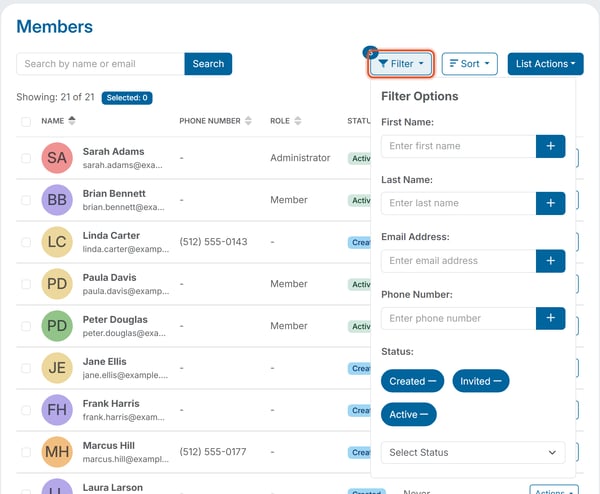
Filter Options panel scrolled down to the Role dropdown, below the Status filters.
- Under Status, the panel starts with Created, Invited, and Active already selected as pills — leave these as-is unless you also want to include Deactivated or Expired members in your results (add those from the Select Status dropdown just below the pills).
- Under Role, open the Select Role dropdown and choose Member, Administrator, or Owner.
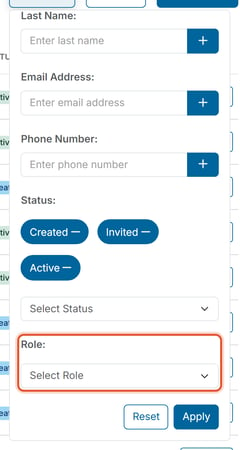
- Click Apply. (Click Reset to clear everything you entered in the panel.)
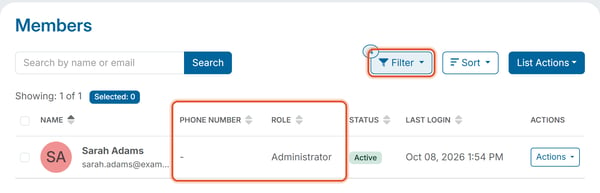
Members list filtered to Role: Administrator, showing only the Administrators in the organization's roster.
##### What the Roles Mean
- Member — a regular member of the organization with no administrative access; they can view and manage only their own account, invoices, and properties.
- Administrator — a member who has been granted elevated access to help manage the organization's settings, members, and properties on the Owner's behalf.
- Owner — the single member designated as the organization's primary account holder, with full control over the organization's online affairs. An organization can have at most one Owner at a time.
***Note:*** The Role filter combines with the other filters in the panel (name, email, phone, status), so you can, for example, filter to Role: Administrator and Status: Active at the same time to find only currently-active admins.
***Note:*** The Filter button shows a small number badge (for example, a "3" or "4") indicating how many filter conditions are currently applied, including the three Status pills that are selected by default — so seeing a non-zero badge doesn't necessarily mean you've applied a Role filter, just that some filter is active. The badge starts at 3 and goes to 4 once you add a Role.
- [Dashboard & Reporting](https://help.hoastart.app/dashboard-reporting?hsLang=en)
- [Members](https://help.hoastart.app/members?hsLang=en)
- [Properties](https://help.hoastart.app/properties?hsLang=en)
- [Documents](https://help.hoastart.app/documents?hsLang=en)
- [Email & Communication](https://help.hoastart.app/email-communication?hsLang=en)
- [Budgets & Expenses](https://help.hoastart.app/budgets-expenses?hsLang=en)
- [Invoicing & Billing](https://help.hoastart.app/invoicing-billing?hsLang=en)
- [Payments](https://help.hoastart.app/payments?hsLang=en)
- [Bank Reconciliation](https://help.hoastart.app/bank-reconciliation?hsLang=en)
- [Organization Settings](https://help.hoastart.app/organization-settings?hsLang=en)
- [Support](https://help.hoastart.app/support?hsLang=en)
[](https://hoastart.com/)
Copyright © 2026, HOA Start