
Excluding a transaction removes it from For review without matching it to anything or creating a new record. Nothing posts to the books — it’s a way of telling the reconciliation “this one doesn’t need any bookkeeping.”
How to Get There
- Click Financials in the left nav, then Bank Reconciliation.
- In the For review tab, click the transaction to exclude.
- In the matching panel, click Exclude.
Choosing a Reason
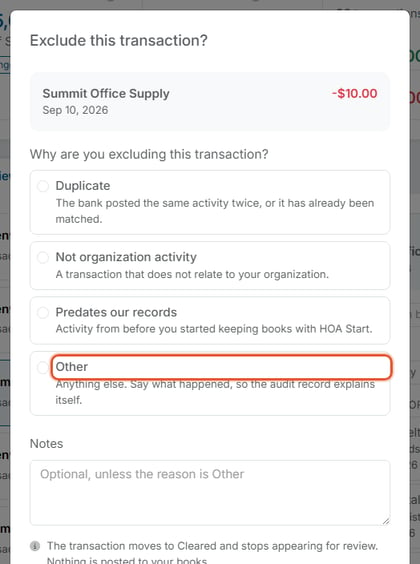
The Exclude this transaction? window shows the transaction’s name, date, and amount, then asks for a reason:
- Duplicate — the bank posted the same activity twice, or it has already been matched elsewhere.
- Not organization activity — a transaction that doesn’t relate to the organization at all.
- Predates our records — activity from before the organization started keeping its books on the platform.
- Other — anything else. Notes is required for this option, so the audit record explains what happened.
Notes is optional for the first three reasons. Once a reason is picked, the window confirms: “The transaction moves to Cleared and stops appearing for review. Nothing is posted to your books.”
- Click Exclude transaction.
After Excluding
The transaction leaves For review and appears in Cleared tagged “Excluded.” It can be brought back to For review later if it was excluded by mistake — see “How Do I Undo a Cleared Bank Reconciliation Transaction?”