
After you record an expense, you can correct some of its details from the Expenses list. Three fields can be edited; the rest are locked so the expense always matches what was posted to your books.
What you can and cannot change
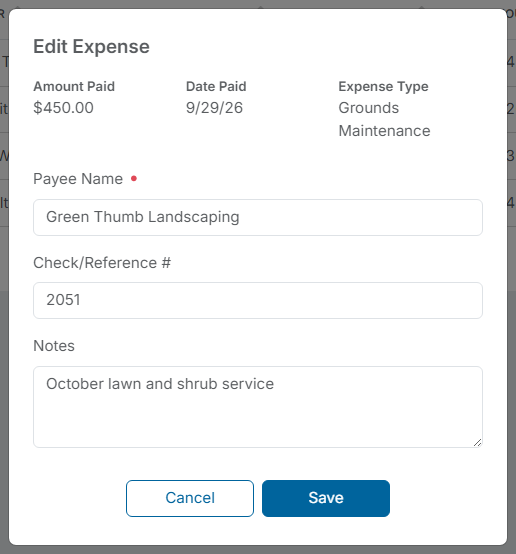
- Can be edited: Payee Name (required), Check/Reference #, and Notes.
- Cannot be edited: Amount Paid, Date Paid, and Expense Type. They are shown as plain text at the top of the Edit Expense window.
If the amount, date, or Expense Type is wrong, void the expense and record a new one instead - see "How Do I Void an Expense?"
Steps
- Go to Financials > Expenses and find the expense. Use Filter if the list is long.
- Click Actions on that row, then Edit.
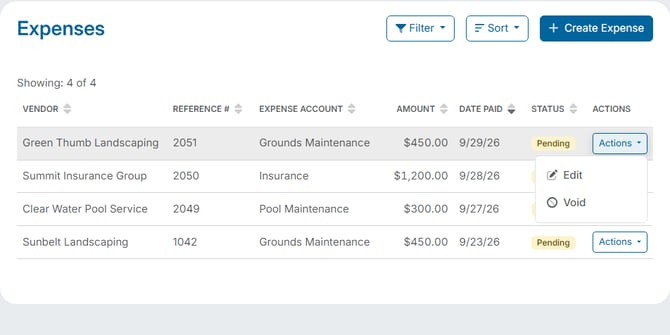
- Change the Payee Name, Check/Reference #, and/or Notes.
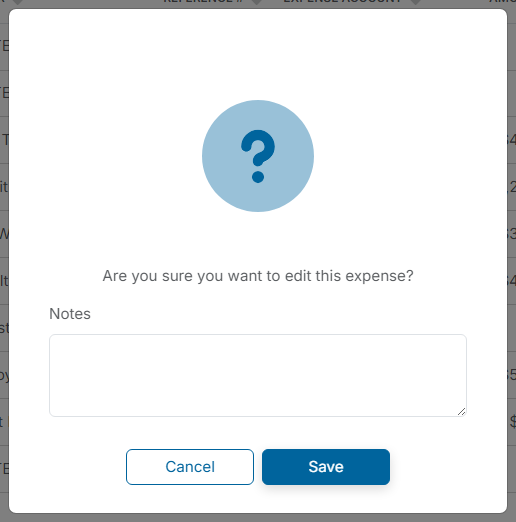
- Click Save. A confirmation asks "Are you sure you want to edit this expense?" and includes an optional Notes box.
- Click Save again. The message "Expense has been updated successfully." appears - click OK.
Example
You recorded a payment to "Sunbelt Landscaping" and later learn the company is named "Sunbelt Landscaping LLC," or you want to add the check number once the check is written. Open the expense with Actions > Edit, update the Payee Name or Check/Reference #, and save.
Good to know
- Editing these fields does not change your books, because the amount and accounts stay the same.
- A voided expense cannot be edited - its Edit option is greyed out.