
When would you use this?
Delete is meant only for data entered in error — for example, a duplicate member record, or a member added with a typo'd name or wrong identity. It is not the right tool for a former resident; use Deactivate instead so their invoice and payment history is preserved (see "How Do I Activate or Deactivate a Member?"). Warning: Delete cannot be undone from the interface. The member record is removed entirely.
Steps
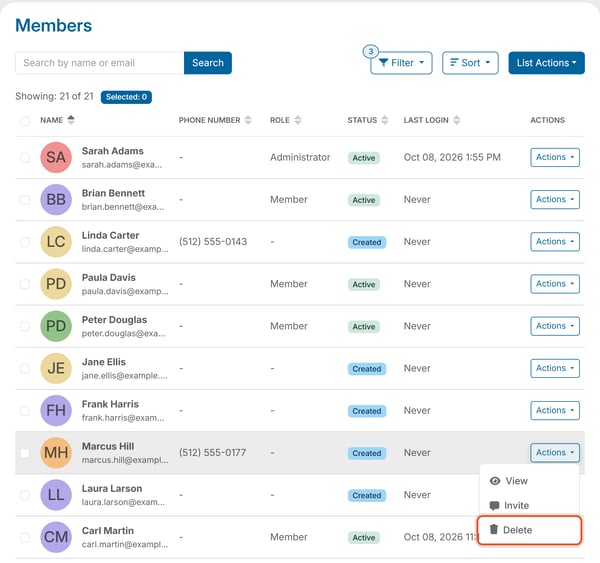
- From the Members list, find the member's row.
- Open the member's row-level Actions menu and choose Delete.
- A confirmation dialog appears: "Are you sure you want to delete [Name]'s Member account?" with an optional Notes field and Yes/No buttons.
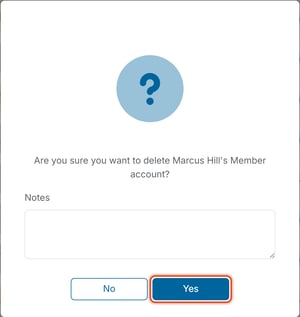
- Click Yes to confirm.
Deleting more than one member at once
Check the boxes next to several rows in the Members list, click List Actions, and choose Delete. The confirmation asks, "Are you sure you want to delete [N] Member account(s)? Your own account will not be deleted."
What happens after deleting
Delete is a genuine hard delete, not a soft "Deleted" status. Once confirmed, the member disappears entirely from the Members list, and searching by the member's exact name or email no longer finds them. The Status filter has no Deleted option. There is no recovery path visible in the interface once Delete is confirmed. You can't delete your own account from the Members list: your own row offers only View.
By contrast, Deactivate only changes Status to Deactivated, and the record, profile, and history tabs stay fully intact and searchable. In short: Deactivate preserves history; Delete erases the record outright.