---
title: How Do I Create and Organize Folders in Document Center
description: create and organize folders in
---
[Skip to content](https://help.hoastart.app/how-do-i-create-and-organize-folders-in-document-center#main-content)

Open main navigation
Close main navigation
How can we help you?
- There are no suggestions because the search field is empty.
1. [HOA Start - Empower](https://help.hoastart.app/?hsLang=en)
2. [Documents](https://help.hoastart.app/documents?hsLang=en)
# How Do I Create and Organize Folders in Document Center
##### **When Would You Use This?**
Folders keep Document Center from becoming one long unsorted list of files. Common ways to organize folders are by document type (Governing Documents, Meeting Minutes, Member Forms) or by purpose (for example, State Pics or PDF's for reference material). By default, Document Center opens in list view, with a row for each folder showing its name, modified date, type, size, and access icon; a toggle lets you switch to grid (tile) view instead, and whichever view you choose is remembered — even after navigating away and back, or switching to a different organization.
##### **Creating a Folder**
1. In Document Center, go to **Browse**.
2. Click **Actions**.
3. Choose **New folder**.

4. Type a name for the folder in **Folder name**. Under **Permission**, choose who can see it: Admin only (selected by default), Member read, or Public. Then click **Create**.
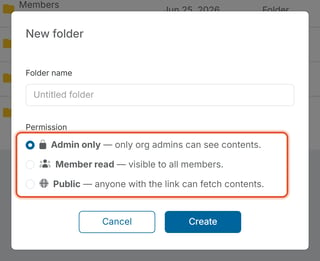
You can change a folder's permission later. See "[How Do I Set Permissions on a Document Center Folder](https://help.hoastart.app/how-do-i-set-permissions-on-a-document-center-folder?hsLang=en)" for the three available levels (Admin only, Member read, Public).
To create a folder inside another folder, open that folder first, then click **Actions** and choose **New folder**.
To work with an existing folder, click **Actions** at the end of its row (in grid view, hover over the tile and click the three dots). The menu offers:
- **Rename** — change the folder's name without affecting its contents or permission level. Type the new name in Folder name, then click Save.
- **Move to…** — relocate the folder into a different folder, or back to the root. Choose the destination in the list, then click Move. Use this to reorganize Document Center without re-uploading anything inside it. **Warning:** a folder takes on the permission of the folder you move it into. Moving a folder into a Public folder makes it, and every file inside it, public.
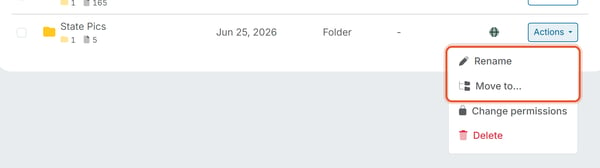
- **Change permissions** — choose who can see the folder (see [How Do I Set Permissions on a Document Center Folder](https://help.hoastart.app/how-do-i-set-permissions-on-a-document-center-folder?hsLang=en)). Folders inside another folder do not have this item; they use the permission of the folder they are in.
- **Delete** — removes the folder and everything inside it for good. See [How Do I Delete a Folder in Document Center?](https://help.hoastart.app/how-do-i-delete-a-folder-in-document-center?hsLang=en).
##### **Sorting the Folder List**
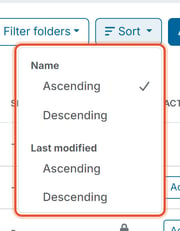
Use **Sort** (next to Filter folders) to control the order folders appear in:
- **Name** — Ascending or Descending
- **Last modified** — Ascending or Descending
##### **Good to Know**
- In list view, each folder's row shows how many files and folders are inside it as small numbers under its name, plus its Modified date; in grid view, the same information appears on the tile. Either way, this helps confirm at a glance whether a folder has been touched recently.
- The Email Attachments folder is locked (marked Locked) and has no Actions menu: it cannot be renamed, moved, or deleted.
##### **Related articles**
- [How Do I Delete a Folder in Document Center?](https://help.hoastart.app/how-do-i-delete-a-folder-in-document-center?hsLang=en)
- [How Do I Rename, Move, Download, or Delete a File in Document Center?](https://help.hoastart.app/how-do-i-rename-move-download-or-delete-a-file?hsLang=en)
- [Dashboard & Reporting](https://help.hoastart.app/dashboard-reporting?hsLang=en)
- [Members](https://help.hoastart.app/members?hsLang=en)
- [Properties](https://help.hoastart.app/properties?hsLang=en)
- [Documents](https://help.hoastart.app/documents?hsLang=en)
- [Email & Communication](https://help.hoastart.app/email-communication?hsLang=en)
- [Budgets & Expenses](https://help.hoastart.app/budgets-expenses?hsLang=en)
- [Invoicing & Billing](https://help.hoastart.app/invoicing-billing?hsLang=en)
- [Payments](https://help.hoastart.app/payments?hsLang=en)
- [Bank Reconciliation](https://help.hoastart.app/bank-reconciliation?hsLang=en)
- [Organization Settings](https://help.hoastart.app/organization-settings?hsLang=en)
- [Support](https://help.hoastart.app/support?hsLang=en)
[](https://hoastart.com/)
Copyright © 2026, HOA Start