Owner only: Only the Organization Owner can connect an organization to Stripe. If you are an Org Admin, stop here and ask your Organization Owner to complete this step.
To collect online payments (credit/debit and ACH bank payments), an organization must first connect a Stripe account. Stripe is the platform's payment processor — there is no monthly or annual fee. Stripe charges per transaction: credit cards are 3.5% of the payment with no per-transaction charge and no cap, and ACH bank payments are 1% of the payment, capped at $8.00. There is no bank connection fee, because bank accounts are verified with microdeposits.
What to Collect Before Starting
- The organization's Employer Identification Number (EIN).
- Bank account number.
- ABA bank routing number.
Important: Whoever activates the Stripe account should be someone actually authorized to sign on the organization's behalf — Stripe collects that person's personal details directly during setup.
How to Get There
- Click Organization Settings in the left nav.
- Click the Settings tab, then choose Stripe Onboarding from the left-hand sub-navigation.
How to Start Onboarding
- Before a Stripe account is connected, this page shows a single "Connect with Stripe" card explaining that the organization will be guided through a secure onboarding process.
- Click Start Stripe Onboarding. This opens Stripe's hosted setup flow, co-branded for the platform, in a new tab.
Note: If Start Stripe Onboarding returns an error instead of opening Stripe's hosted flow, don't keep retrying — open a Support Desk ticket so the organization's payment-processing setup can be checked.
Important: Do not click through the Stripe setup flow on a real organization just to "test" it — submitting creates a real, non-reversible Stripe account tied to that organization's bank and tax information.
What Happens in Stripe's Setup Flow
After you click Start Stripe Onboarding, the rest of setup happens on Stripe's own hosted, co-branded pages rather than within the platform. Because this part of setup runs on Stripe's own hosted pages, exact wording or field order can shift slightly as Stripe updates its onboarding flow.
- Create a Stripe account — enter an email and password. If the email already has a Stripe account, Stripe recognizes it automatically.
- Secure the account — set up two-step authentication with an authenticator app or a mobile phone number (Stripe texts a 6-digit code).
- Save the backup code — Stripe provides a 20-digit emergency backup code to unlock the account later. Store it somewhere safe.
- Basic organization information — legal business name and EIN. These must match the organization's IRS documents exactly.
- Verify personal information — legal name, email, and date of birth for the authorized person completing setup.
- Fulfillment details — how the organization provides goods/services. In most cases select "Consumers" since customers are Members; also select "Businesses" if using One-Time Charges for business payments.
- Bank account information — connect via bank login, or click "Enter bank details manually instead" to use the routing number and account number directly.
- Public details for customers — a statement descriptor so members recognize the charge on their bank/card statement (6–22 characters).
- Climate contribution (optional) — Stripe offers donating a percentage of each transaction to carbon removal. Select "No thanks" to opt out if not wanted.
- Review and submit — check every section (business, public, management/ownership, payout details), use the edit pencil icon to fix anything, then submit.
Note: Approval is almost immediate with correct information, and a confirmation email typically arrives within the hour.
If you have questions during Stripe setup, open a Support Desk ticket from the Support section in the left-hand nav.
Note: The first time an organization connects to Stripe, the platform automatically adds a "1030 - Stripe Balance" account to Financials > Chart of Accounts. This tracks payments Stripe has collected on the organization's behalf that haven't transferred to the organization's bank account yet. See "How Do I Edit the Default Stripe GL Account?" for what it represents and how to rename or renumber it.
Disconnecting Stripe
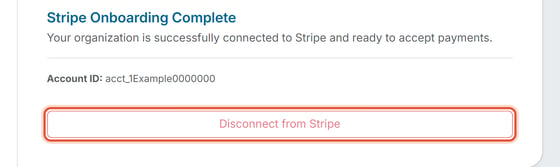
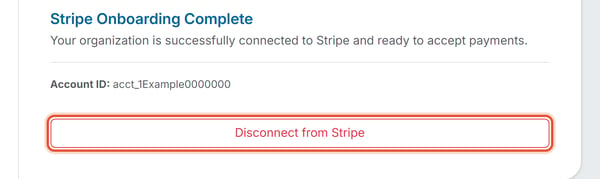
Once connected, the same Stripe Onboarding page shows "Stripe Onboarding Complete," the organization's Account ID, and a Disconnect from Stripe button. Only the Organization Owner can disconnect Stripe. For an Org Admin, the button appears greyed out and cannot be clicked.
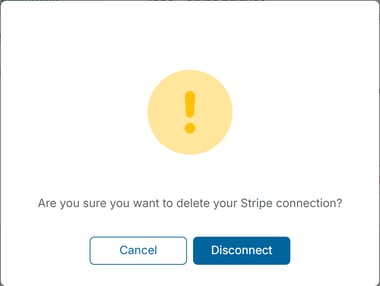
Clicking it opens a confirmation: "Are you sure you want to delete your Stripe connection?" with Cancel and Disconnect buttons.
Important: Disconnecting removes the organization's link to its Stripe account inside the platform — it stops the organization from accepting online payments until it's reconnected. It does not reach into Stripe itself to close or alter the underlying Stripe account.