
Your organization has a default for whether newly added members are listed in the Member Directory. As an Org Admin or Owner, you can turn that default on or off.
How to Get There
- Click Organization Settings in the left nav.
- Click the Settings tab, then choose General from the left-hand sub-navigation. General is the default sub-tab.
- Scroll down to the Member Directory section, below Localization.
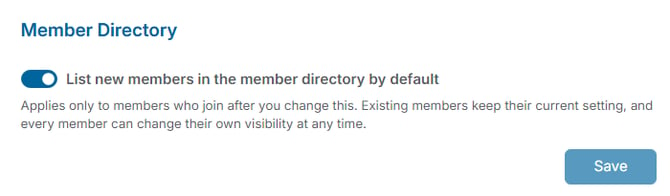
Changing the Default
- Turn the "List new members in the member directory by default" toggle on or off.
- Click Save.
What the Setting Does
- On — members who join after this point are listed in the Member Directory automatically.
- Off — members who join after this point are not listed in the Member Directory until they choose to be.
The setting only applies to members who join after you change it. Members who are already in your organization keep the choice they already have, so changing the default will not add or remove anyone who is already a member.
Every member can also change their own visibility at any time. Turning the default off does not stop a member from including themselves, and turning it on does not stop a member from hiding themselves. See "How Do I Remove Myself from the Member Directory?" for what members see.
Example
Your board wants members to opt in to being listed. Turn the default off and click Save. People who join from then on are not listed until they go to their own profile settings and choose to be included. Everyone who was already a member keeps whatever setting they had.
Note: Changes on this page save together with the rest of General Organization Settings using the Save button at the bottom of the page.