
Attach a property to a member as an Owner or Tenant without leaving the member's profile. Owners and Org Admins can do this from the Properties tab of the Member Profile page.
When would you use this?
- A member buys a second unit and you want to add it from their profile while you already have it open.
- A new member was just added and you need to link them to the unit they own.
- A homeowner rents out their unit and you want to record a member as the Tenant of it.
Steps
- Click Members in the left nav.
- Find the member, click their row Actions menu, and choose View.
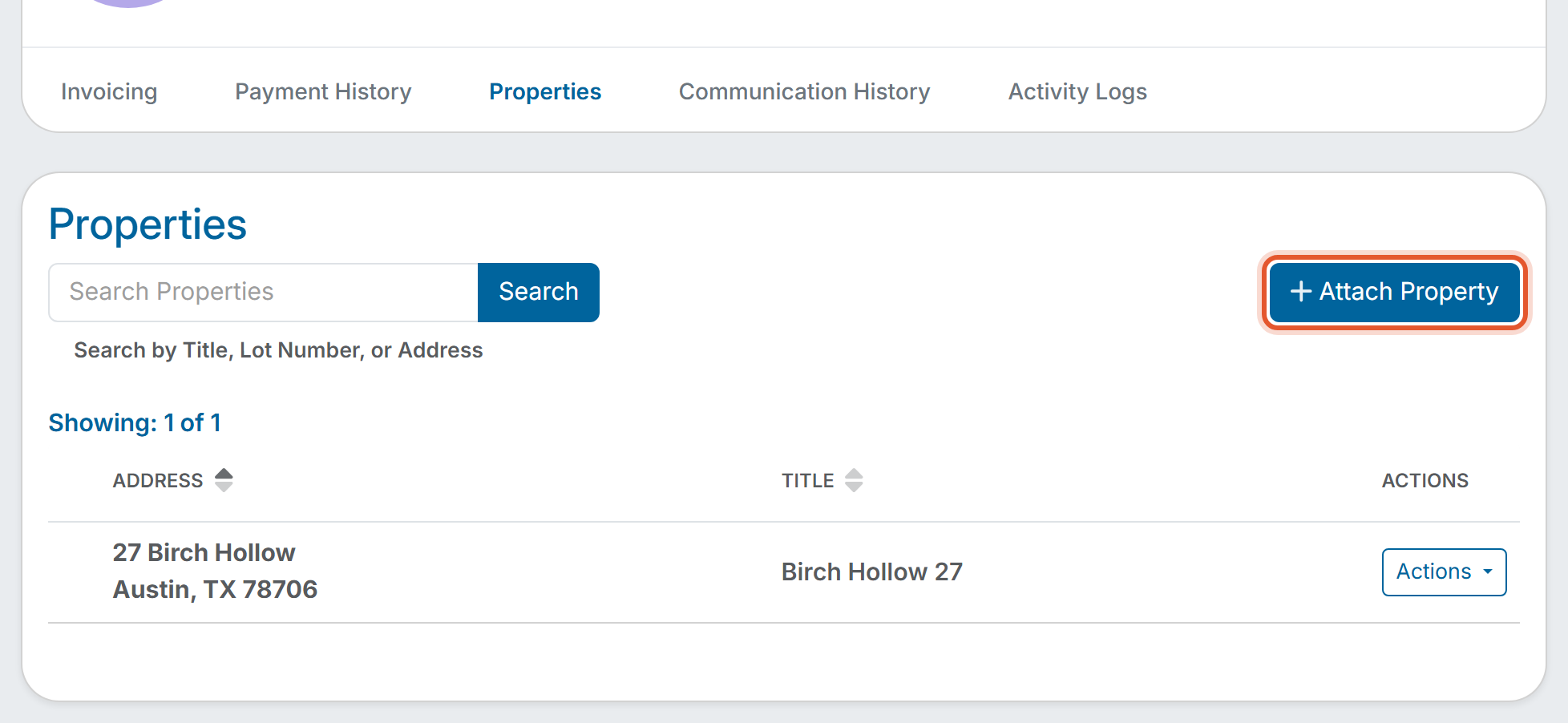
- Click the Properties tab, then click Attach Property.
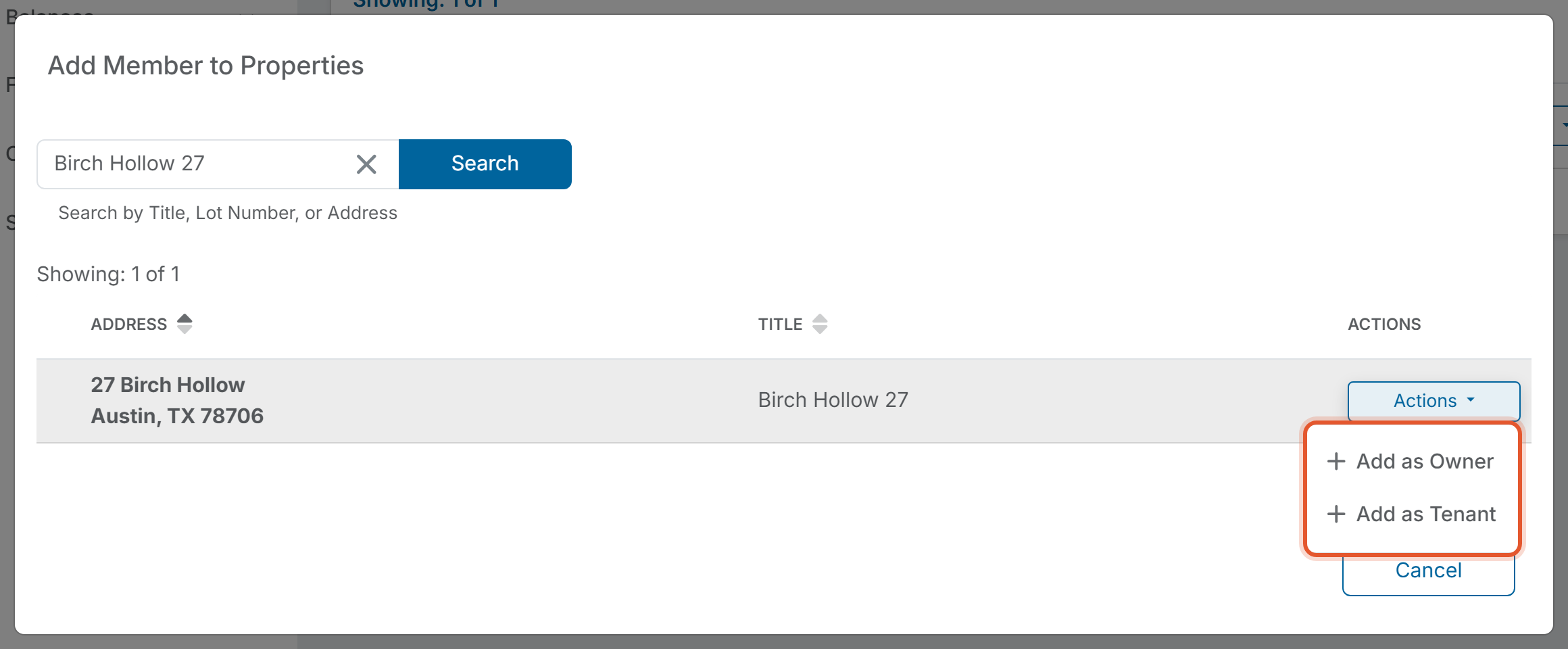
- In the "Add Member to Properties" window, find the property. The list shows each property's address and title, with a "Showing" count above it. To narrow the list, type a title, lot number, or address in the search box and click Search.
- Click the Actions button on the property's row and choose Add as Owner or Add as Tenant.
- A confirmation window asks "Are you sure you want to add [member name] to this Property?" Click Add. Click Cancel to go back.
- A message reads "Member added to Property successfully." Click OK. The "Add Member to Properties" window stays open; click Cancel to close it.
What you will see afterwards
- The property appears in the list on the member's Properties tab.
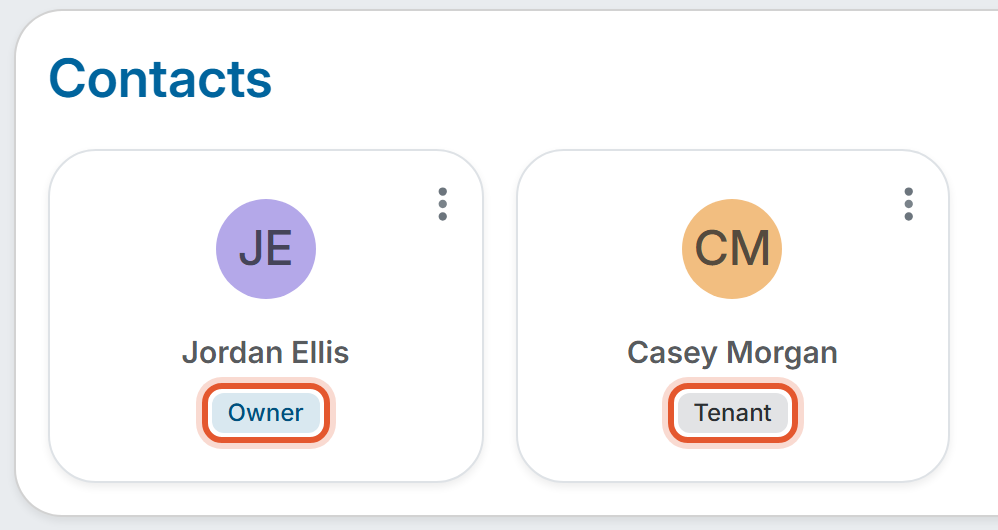
- On the property's Contacts tab, the member appears as a card with an Owner or Tenant badge.
- The property's Member Count on the Properties list goes up by one.
- The property's Activity Logs tab adds an entry such as "[Member name] was added as Owner of [property street address]." with the name of the person who made the change and the date and time.
Good to Know
- This produces the same result as attaching from the property's side. The only difference is where you start: here you start from the member and pick the property.
- A member whose Status is Created (no login yet) can be attached the same way as an active member.
- To detach a member from a property, use the three-dot menu on the member's card on the property's Contacts tab. See the related articles below.