
When would you use this?
- A community adds a newly-built unit or lot that didn't exist in the system before.
- You're onboarding a new organization and need to enter its full list of addresses one at a time.
- A property was deleted by mistake and needs to be re-created from scratch.
Steps
- From the Properties list, click List Actions (top-right, above the table — not a row's own Actions menu) and choose Add Property. This opens a modal form.
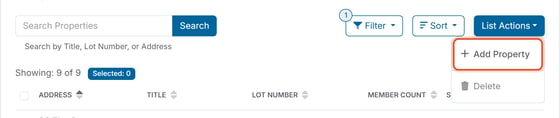
- Fill in the fields.
- Click Submit.
The fields
- Title — a free-text name for the property. Optional: if left blank, the property falls back to displaying its address as the title.
- No street address available (checkbox) — check this only for a property that genuinely has no mailing address. This is rare, so leave it unchecked in the normal case.
- Country — required, but pre-filled: it defaults to the country set on the organization's Physical address (Organization Settings > Addresses). You can still change it before saving if the property is in a different country. The list includes Bahamas, British Virgin Islands, Canada, Cayman Islands, Costa Rica, Dominican Republic, Mexico, United Kingdom, and United States of America.
- Address Line 1 — required. The street number and name, e.g. "1 Test Way."
- Address Line 2 — optional. Use this for a unit/suite/apartment number when the building address alone isn't specific enough, e.g. "Unit 4B."
- City — required.
- State / Province — required. A dropdown populated based on the selected country.
- Zip / Postal Code — required.
- Lot Number — optional free-text code, useful for HOAs organized by lot rather than street address. Example: a subdivision might use lot numbers like "v-88" for internal reference even though the property also has a full mailing address.
Fields marked with a red dot are required: Country, Address Line 1, City, State/Province, and Zip/Postal Code. Title and Lot Number are optional. Submitting with any required field empty shows an inline error under that field and blocks the save.
If the address can't be verified
When you click Submit, HOA Start checks the address. If the mail service reports a problem, the This address may not be deliverable window opens. It shows what the mail service reported, for example Deliverable with Issues with the note that the building is deliverable but requires a unit number that is missing. It also shows two versions of the address: You entered, the address as you typed it, and We suggest, the corrected address. We suggest is selected by default.
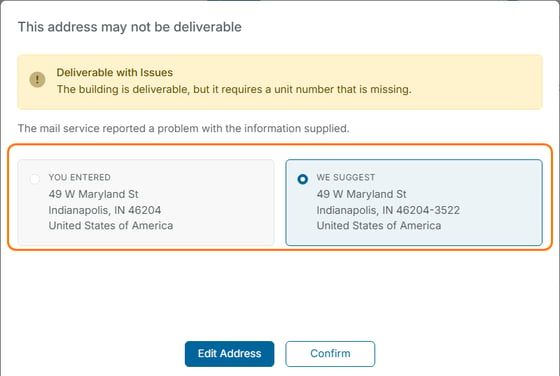
Select the version you want to save and click Confirm. To change the address instead, click Edit Address. The form reopens with everything you entered still filled in.
After submitting
A "Property added successfully" confirmation appears — click OK to dismiss it and return to the list, where the new property now appears. Its Member Count starts at 0 since no one has been attached to it yet.