
Manual GL Entries let you record accounting entries directly, bypassing the normal invoice/payment flow.
For payments the organization makes to vendors, use Financials > Expenses instead - recording an expense posts to your books automatically, so no manual entry is needed. See Record an Expense.
When You'd Use This
- Recording a bank transfer between the Operating and Reserve accounts that isn't tied to any invoice.
- Correcting a miscategorized transaction (e.g. a payment was posted to the wrong income account).
- Recording interest earned on a reserve account, or a bank fee charged directly by the bank.
How to Get There
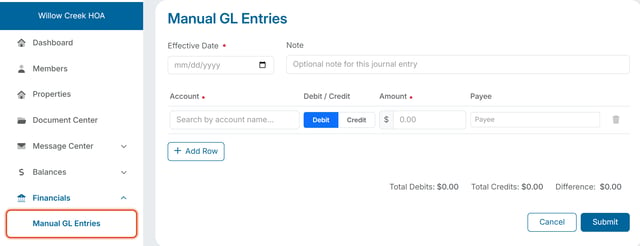
- Go to Financials > Manual GL Entries.
How the Form Works
- Effective Date (required) — the accounting date this entry counts toward.
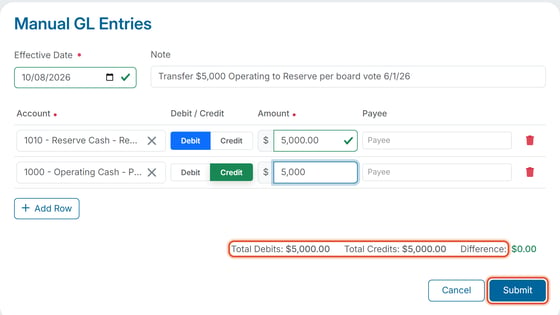
- Note (optional) — a free-text description. This is how anyone reviewing the books later will know why the entry exists, so be specific, e.g. "Transfer $5,000 Operating to Reserve per board vote 6/1/26."
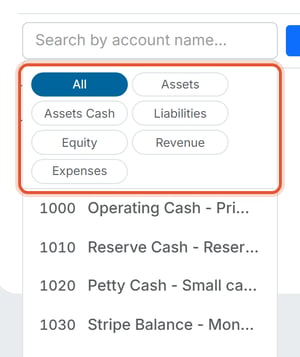
- Account — a type-ahead search box, not a plain dropdown. Type any letter to see a live list of every account in the organization's chart of accounts. Category filter chips above the list (All, Assets, Assets Cash, Liabilities, Equity, Revenue, Expenses) narrow the search. To add an account that is not in the list, see How Do I Add a New Account to the Chart of Accounts. Each account shows its number, name, and a short description, e.g. "1000 — Operating Cash — Primary checking account."
- Debit / Credit — a two-button toggle next to each line. A Debit increases an asset or expense account (or decreases a liability, equity, or income account); a Credit does the opposite. Every entry needs at least one debit line and one credit line, and both sides must add up to the same total. For example, moving $5,000 out of Operating Cash is a Credit to Operating Cash and a Debit to Reserve Cash.
- Amount (required) and, optionally, a Payee on each line.
Steps
- Go to Financials > Manual GL Entries.
- Set the Effective Date and, optionally, enter a Note.
- In the Account box, start typing to search, then click the matching account.
- Click Debit or Credit for that line. Then enter the Amount. If you want, enter a Payee.
- Click + Add Row for additional lines. Remove a row with the trash-can icon at its right edge.
- Watch Total Debits, Total Credits, and Difference at the bottom right. Difference must read $0.00 — while the two sides are unequal, it displays in red as a warning.
- Click Submit.
Note: Clicking Cancel on a form with unsaved changes always triggers an "Are you sure you want to leave? Your changes will be lost." confirmation with Stay/Leave buttons — a safety net against accidentally losing a half-entered entry.