---
title: Create a Budget
description: create a budget
---
[Skip to content](https://help.hoastart.app/create-a-budget#main-content)

Open main navigation
Close main navigation
How can we help you?
- There are no suggestions because the search field is empty.
1. [HOA Start - Empower](https://help.hoastart.app/?hsLang=en)
2. [Budgets & Expenses](https://help.hoastart.app/budgets-expenses?hsLang=en)
# Create a Budget
**Financials \> Budgets** is where an annual revenue/expense plan is built, one line per account, so actuals can later be compared against the plan. A budget is a **Year** plus a list of account rows, each pairing an account with a planned **Annual Budget Amount**.
##### **When would I use this?**
- Setting a spending plan for the coming fiscal year before it starts, so the board can approve it.
- Planning both revenue (e.g. expected assessment income) and expenses (e.g. planned landscaping spend) side by side for the year.
- Comparing what was actually collected/spent against the plan partway through the year.
##### **Steps**
1. Go to **Financials \> Budgets** and click **+ Create Budget**.

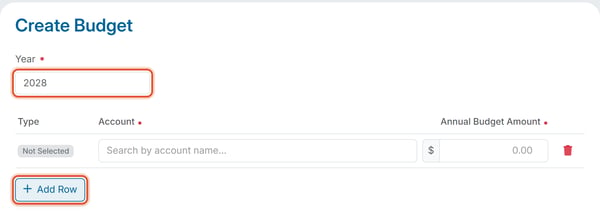
2. Set the **Year** (the form pre-fills a suggested year — change it if you need a different one).
3. Click **+ Add Row** to add an account line (the form starts with none). Repeat for every account you want to budget.
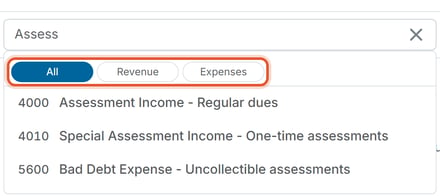
4. In each row's **Account** box, start typing to search the chart of accounts. Category chips above the results show: **All**, **Revenue**, **Expenses**. Both revenue accounts (for example, Assessment Income, Amenity Fees) and expense accounts (for example, Repairs & Maintenance) can be budgeted on the same budget.
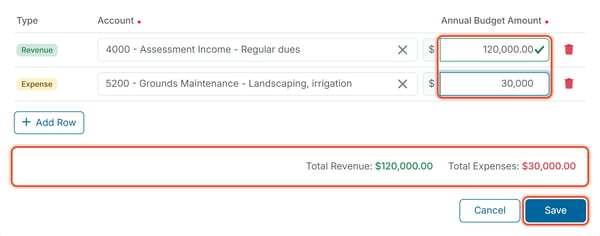
5. Enter the **Annual Budget Amount** for that row.
6. Repeat for as many accounts as needed. To remove a row you added by mistake, click the trash icon at the end of that row. Then click **Save**, or click **Cancel** to leave without saving.
##### **Good to know**
- The **Type** badge on each row (Revenue or Expense) is not a field you choose — it fills in automatically based on which account you selected. A row shows "Not Selected" for Type only until an account is chosen.
- **Total Revenue** and **Total Expenses** at the bottom right update live as you add rows and amounts.
- To compare the plan with actual income and spending, see [How Do I View a Budget's Summary?](https://help.hoastart.app/how-do-i-view-a-budgets-summary?hsLang=en)
- There is no manual Name entry on the Create Budget form — a budget is auto-named by the platform based on the year, for example a budget created for 2026 is automatically saved as "2026 Operating Budget," with Frequency "Yearly" and Status "Active."
- Only one budget can exist for each year. If you enter a year that already has a budget, the Year field shows "A budget already exists for this year" and the budget can't be saved. Use **Edit** on the existing budget instead (see [View and Edit Budgets](https://help.hoastart.app/view-and-edit-budgets?hsLang=en)).
- [Dashboard & Reporting](https://help.hoastart.app/dashboard-reporting?hsLang=en)
- [Members](https://help.hoastart.app/members?hsLang=en)
- [Properties](https://help.hoastart.app/properties?hsLang=en)
- [Documents](https://help.hoastart.app/documents?hsLang=en)
- [Email & Communication](https://help.hoastart.app/email-communication?hsLang=en)
- [Budgets & Expenses](https://help.hoastart.app/budgets-expenses?hsLang=en)
- [Invoicing & Billing](https://help.hoastart.app/invoicing-billing?hsLang=en)
- [Payments](https://help.hoastart.app/payments?hsLang=en)
- [Bank Reconciliation](https://help.hoastart.app/bank-reconciliation?hsLang=en)
- [Organization Settings](https://help.hoastart.app/organization-settings?hsLang=en)
- [Support](https://help.hoastart.app/support?hsLang=en)
[](https://hoastart.com/)
Copyright © 2026, HOA Start